Managing Projects
Create a New Project
If using projects within the Takeoff platform, a project must be created before drawings, measurements, and takeoff data can be managed. Projects provide a container for organizing project information, measurement settings, notes and templates. Only one project can be open at a time within the platform.
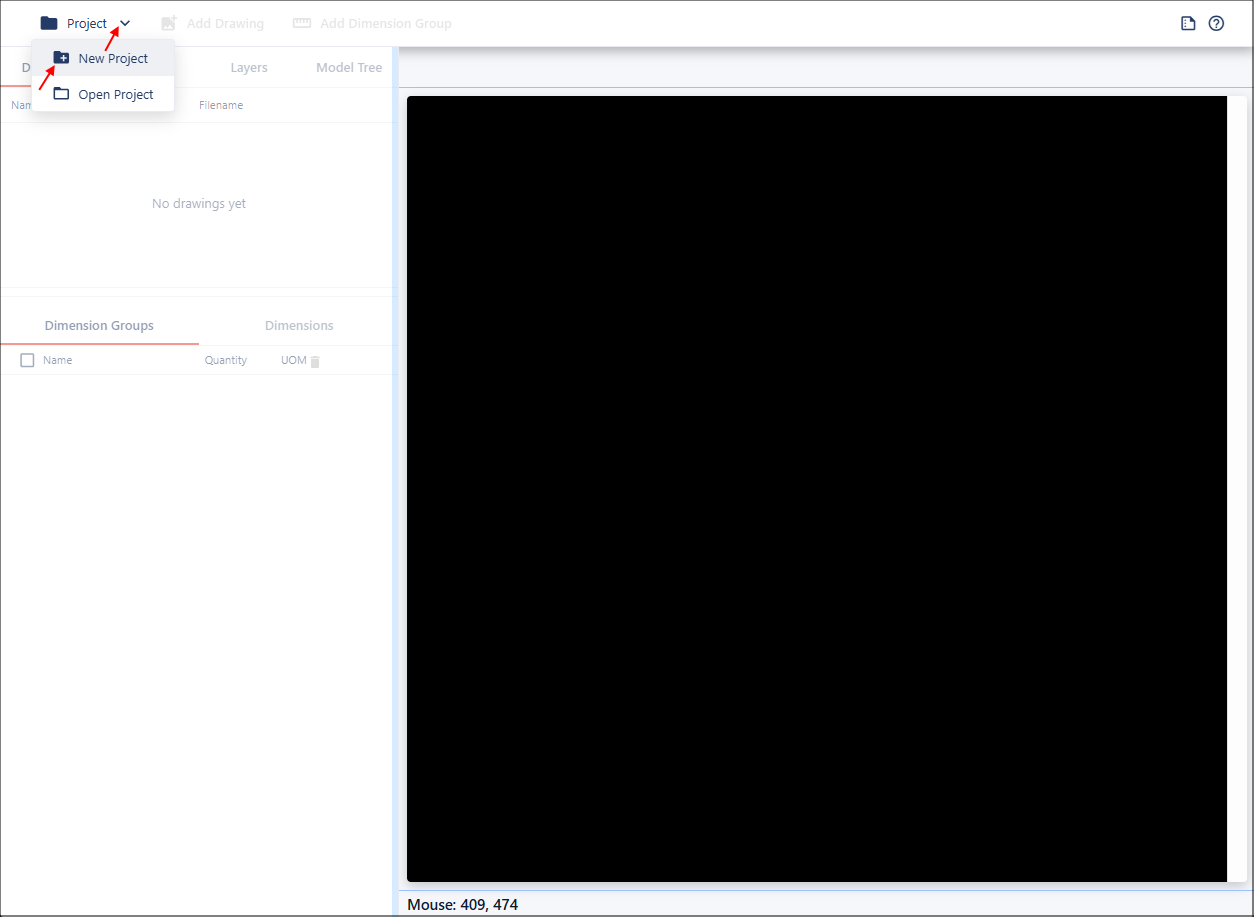
To create a new project, click Project and select New Project to open the Project dialog.
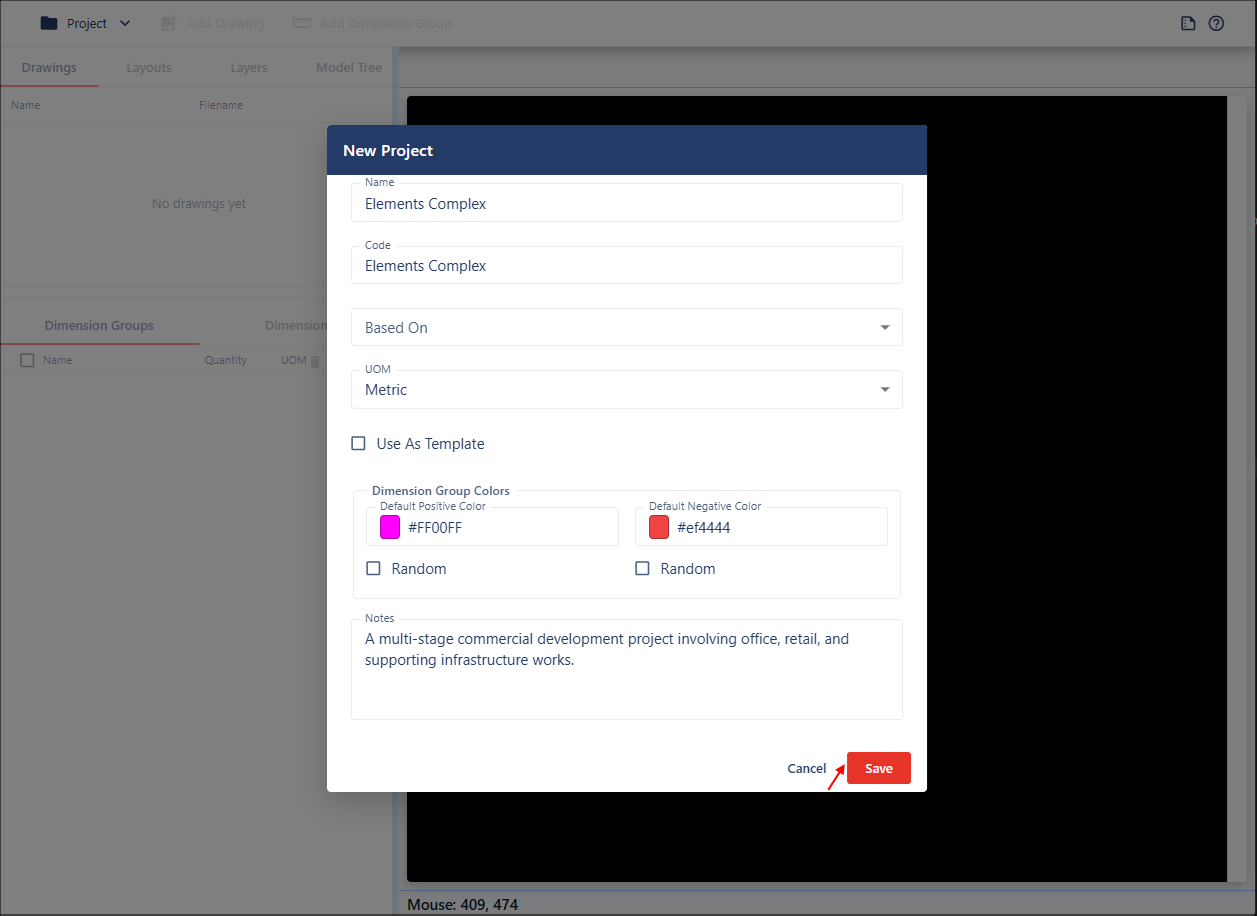
Enter a project name and configure any additional settings required. Once completed, click the Save button.
Default Values
When a new project is created, the following default settings are applied:
| Setting | Default Value |
|---|---|
| UOM | Metric |
| Use As Template | Unchecked |
| Positive Color | #22c55e |
| Negative Color | #ef4444 |
| Random Color Options | Disabled |
Project Name and Project Code
The project name is required before a project can be saved. The Save button will remain disabled with no name for your project.
When entering a project name, the Project Code is automatically populated using the same value. If the Project Code is manually edited, it becomes independent from the project name and will no longer automatically update when the name changes.
Editing Existing Projects
Existing projects can be modified through the Project Properties dialog. The following values can be updated:
- Project name
- Project code
- Unit of measurement
- Notes
- Color settings
- Template settings
When changes are saved:
- The existing project reference is retained.
- Updated values are persisted to the project.
Unit of Measurement
Projects support multiple unit systems. Available options include:
- Metric
- Imperial
Changing the unit system updates the project measurement configuration.
Project Notes
The Notes field allows additional project information to be stored. Notes support:
- Large text entries
- Special characters
- Unicode characters
- Emojis
The dialog remains responsive even when large amounts of text are entered.
Project Templates
Projects can be saved as templates to provide a starting point for future projects.
To create a template, enable the Use As Template checkbox when creating or editing a project and then save the project. The project will be available in the Based On dropdown, the Dimension Groups from the template are copied into the new project. No other project settings or data are inherited from the template.
Color Configuration
Projects support configurable colors for positive and negative values.
The Positive Color setting controls the color used for positive values within the project. Users can either select a color, select a custom color, or enable random color generation.
The Negative Color setting controls the color used for the negative values within the project. Users can select a color the same way as the Positive Color setting.
Random Color Options
Random color generation can be enabled independently for positive and negative colors. When enabled:
- The color picker is disabled
- A random color indicator is displayed
- The system automatically generates colors during use
When disabled:
- The color picker becomes available again
- Default colors are restored unless another color is selected
Saving Projects
Selecting Save performs the following actions:
- Validates required fields
- Creates or updates the project
- Generates a unique project identifier for new projects
- Stores all configured project settings
- Closes the dialog
Cancelling Changes
Selecting Cancel closes the dialog without saving changes. Any unsaved changes are discarded.