Overview
On-Screen Measurement Workflow
Taking measurements in DimensionIQ is designed to be fast and intuitive, using a simple point-and-click workflow directly on the drawing.
When a drawing contains vector geometry, DimensionIQ enables the Snap Cursor by default. This tool assists during measurement by automatically detecting and aligning to key elements within the drawing, snapping to the nearest valid point or feature.
As you move the cursor across the drawing, the Snap Cursor identifies nearby elements such as endpoints, corners, intersections, and edges and boundaries. When a valid point is detected, the cursor snaps into place, allowing for precise and consistent measurements.
In some cases, it may be necessary to measure in open space where no geometry is available. The Snap Cursor can be temporarily disabled by holding Option (Mac) / Alt (Windows) and clicking to manually define points. Pressing the Escape key will end the measurement and return the cursor to its default behavior.
For drawings that do not contain vector geometry, the Snap Cursor is not available. Measurements in these cases are performed manually by holding Option/Alt and clicking to define start and end points.
As measurements are created, they are visually highlighted on the drawing and displayed under the Dimensions tab.
Measure Tool
The Measure tool allows you to quickly view the length between two points without creating a permanent dimension. Unlike standard dimensions, measurements taken with this tool are not saved, do not appear in the Dimensions menu, and will not remain visible on the drawing. It is intended purely for quick, on-the-fly reference.
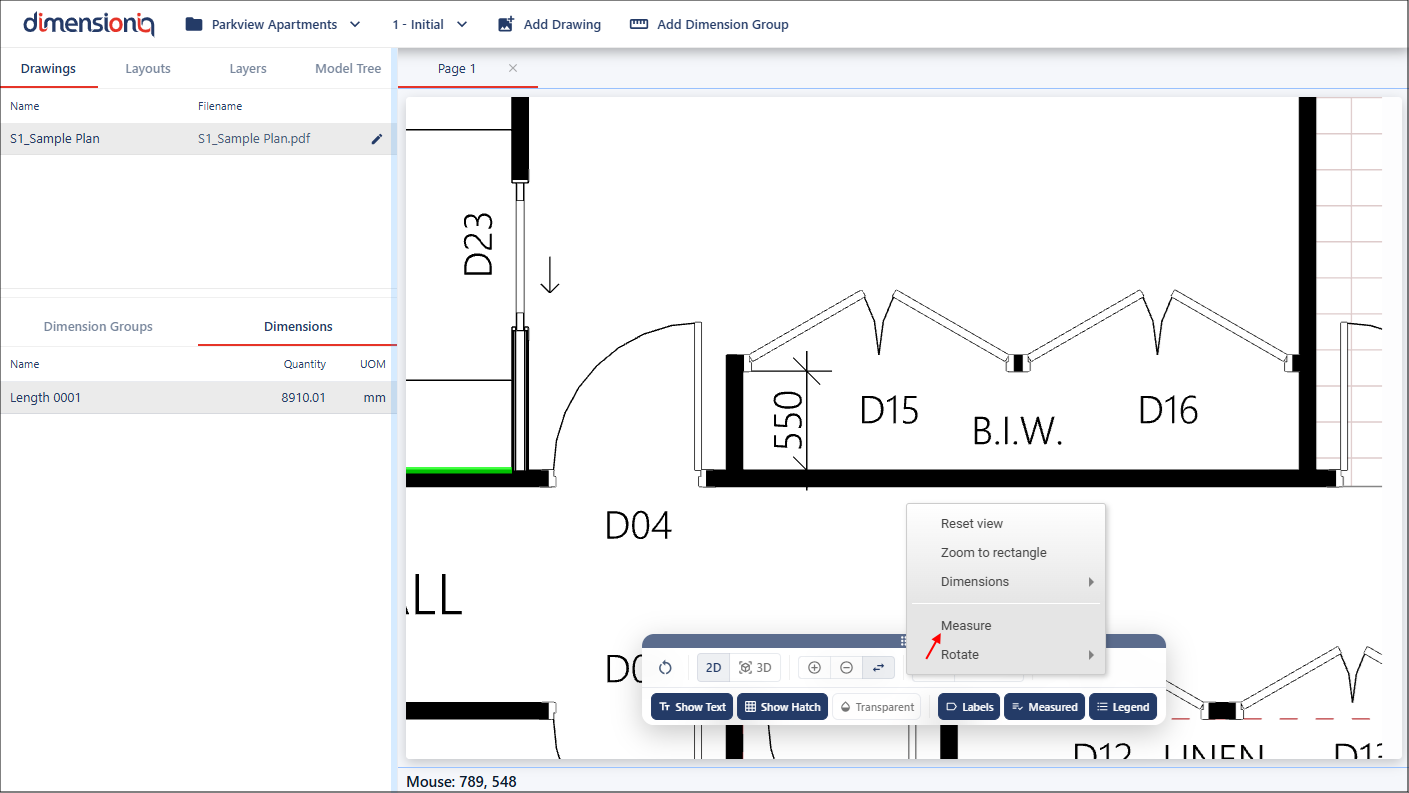
To use the Measure tool, right-click in the viewport and select Measure from the Context menu.
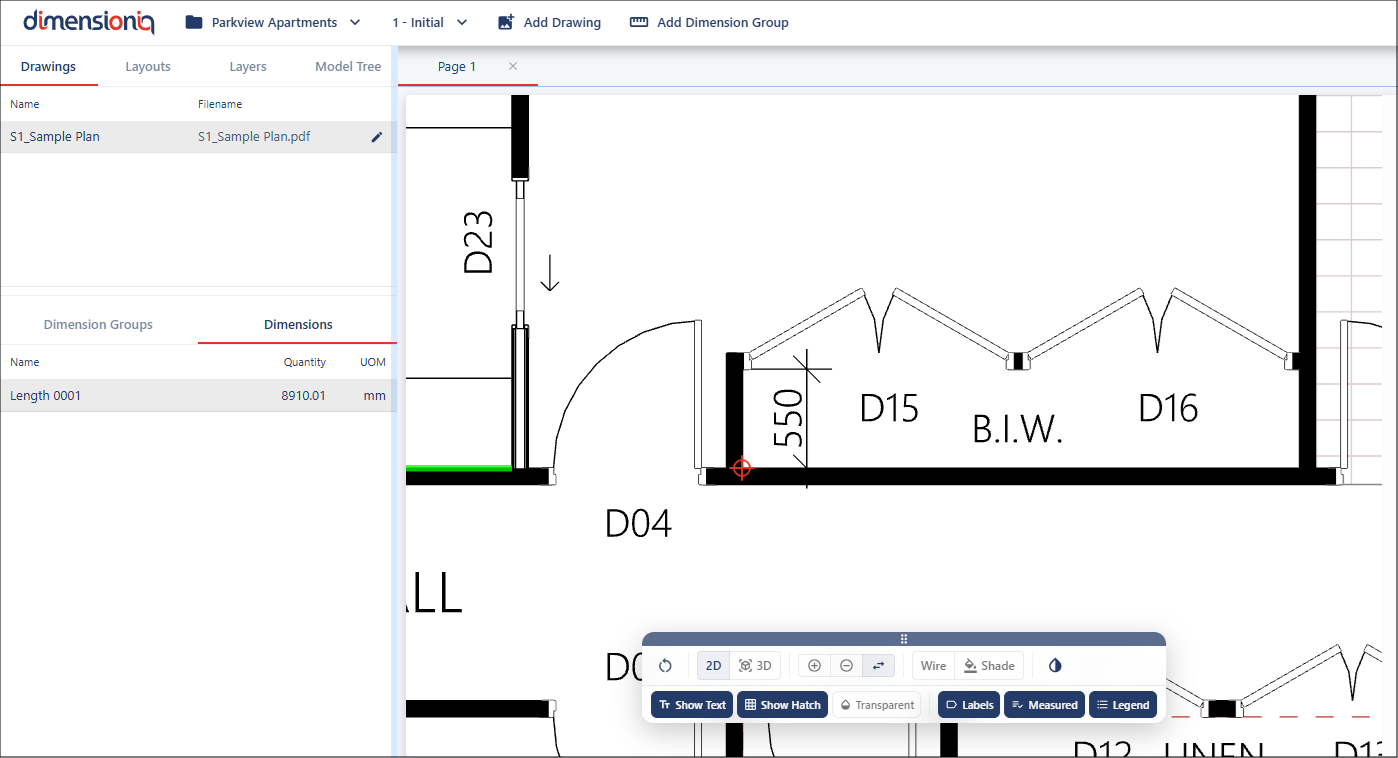
Move your mouse to the starting point and the red pointer will snap to point, then click and hold the mouse button.
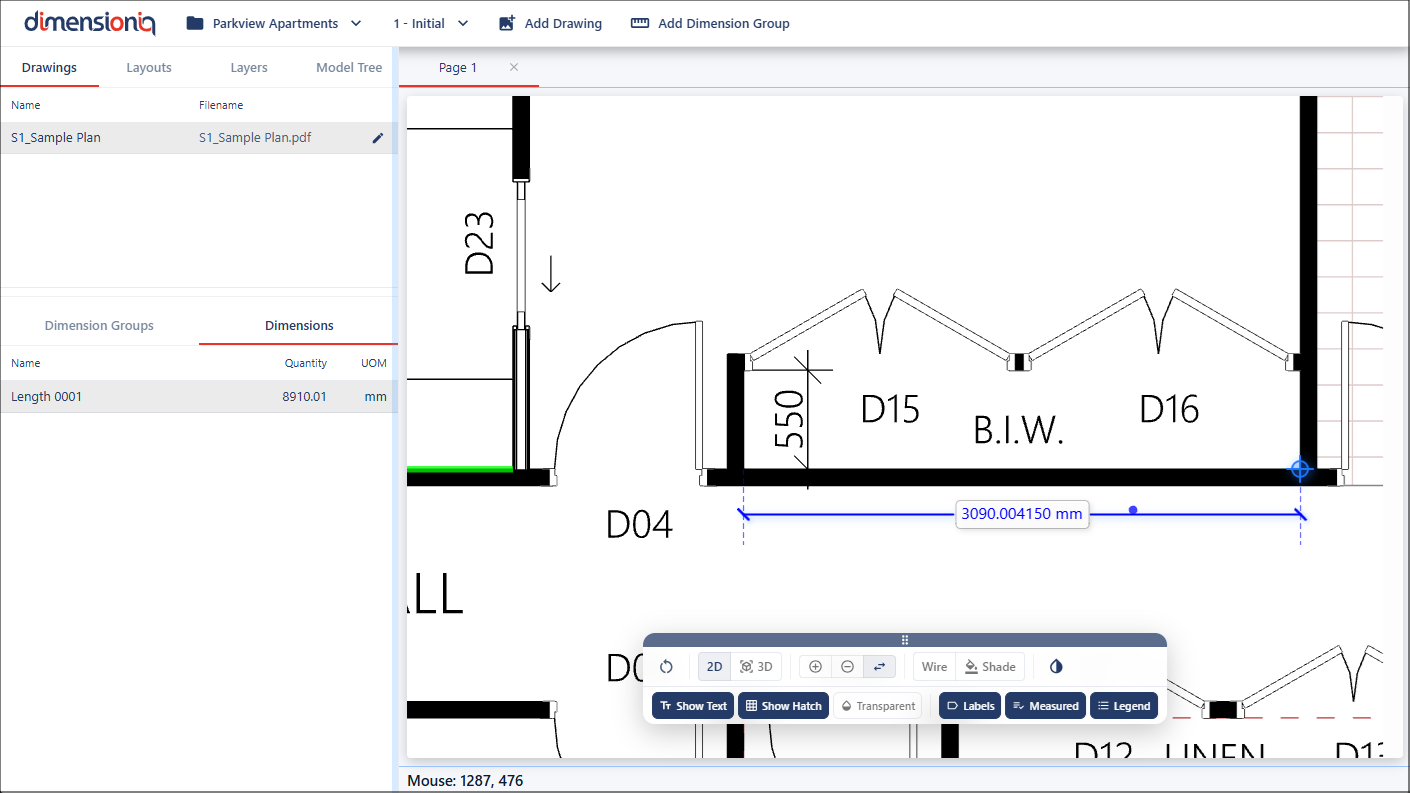
While holding, move the pointer to the next point, when it snaps, the pointer will turn blue, and the measurement will be displayed between the two points. Once you release the mouse button, the measurement will disappear.