Manual Point Length
Overview
Manual Point Length allows you to create length measurements by selecting points directly within the drawing. This method is useful when there is no existing geometry available to snap to, or when measuring irregular and freeform dimensions.
Use Manual Point Length
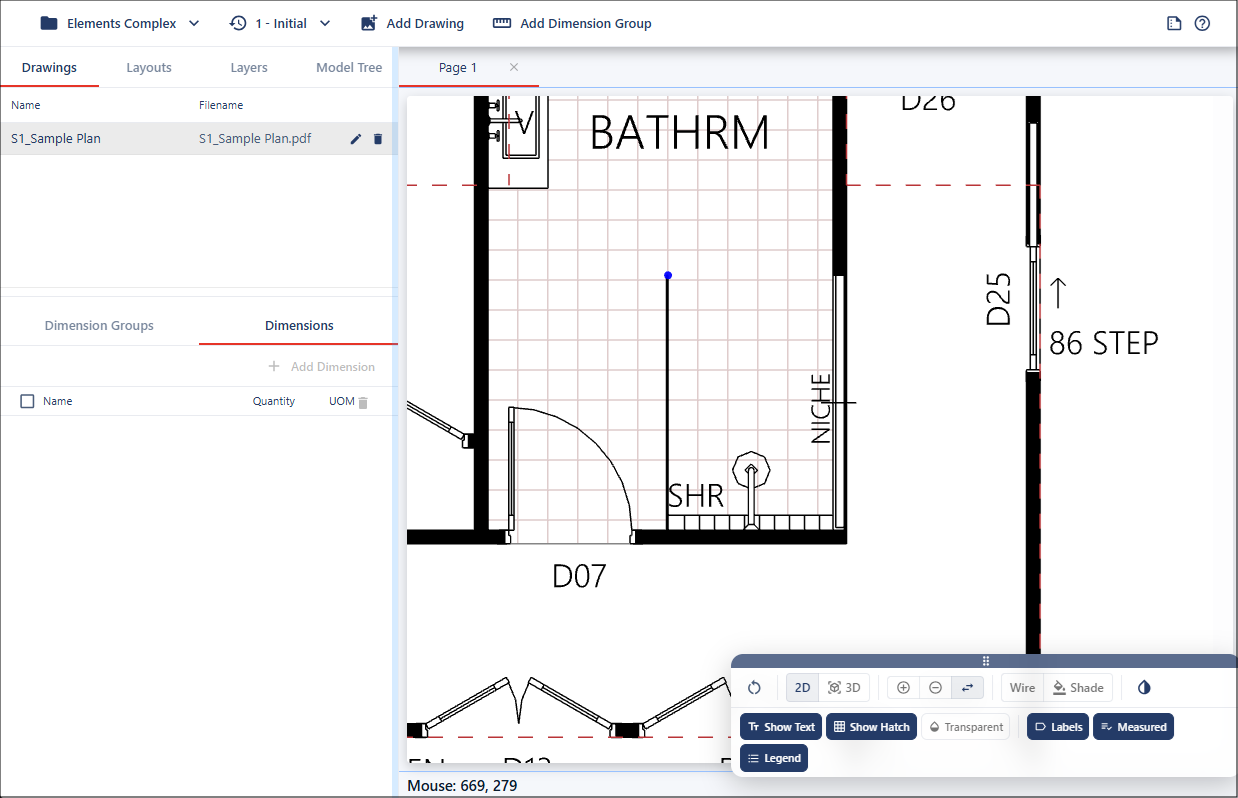
To create a measurement, hold Alt (Windows) / Option (Mac) while moving your cursor over the drawing. When the cursor snaps to a valid point, left click to place the starting point.
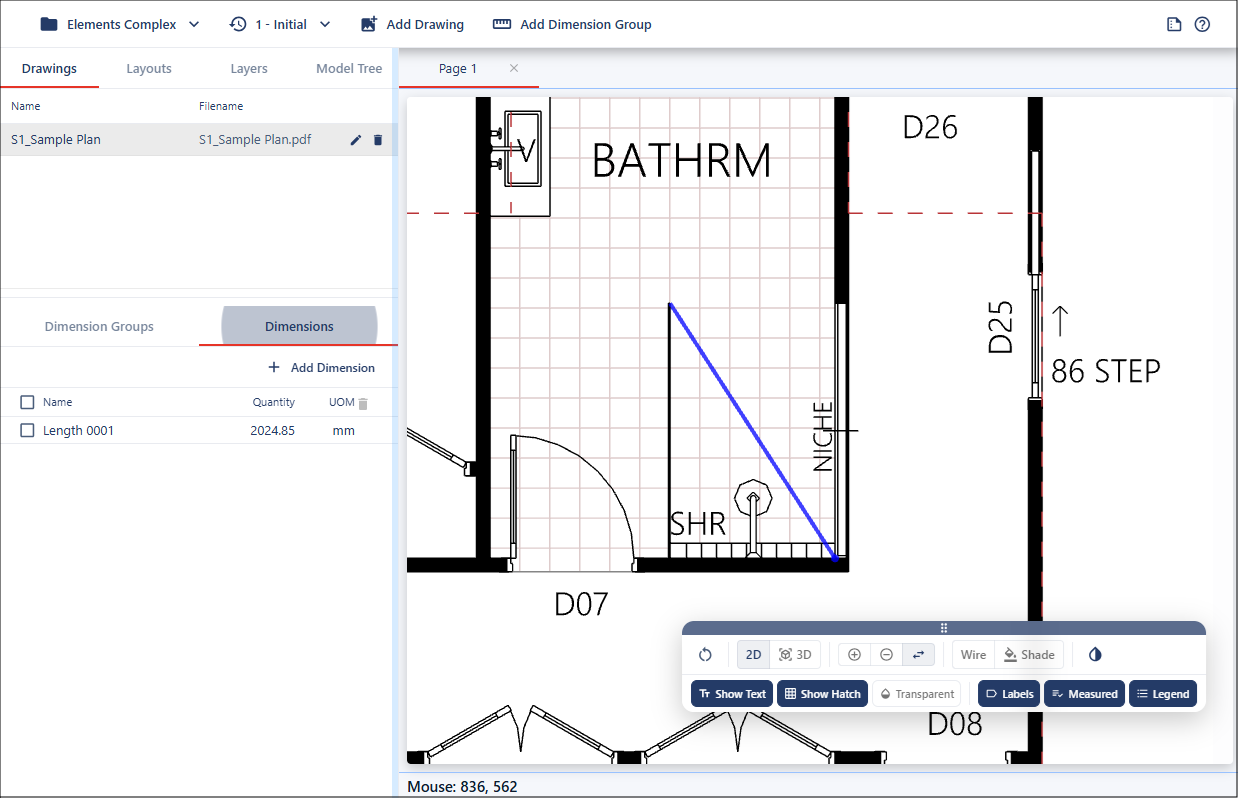
Then drag your mouse to an endpoint where the cursor will snap to a valid point and left click again.
Appending Lengths
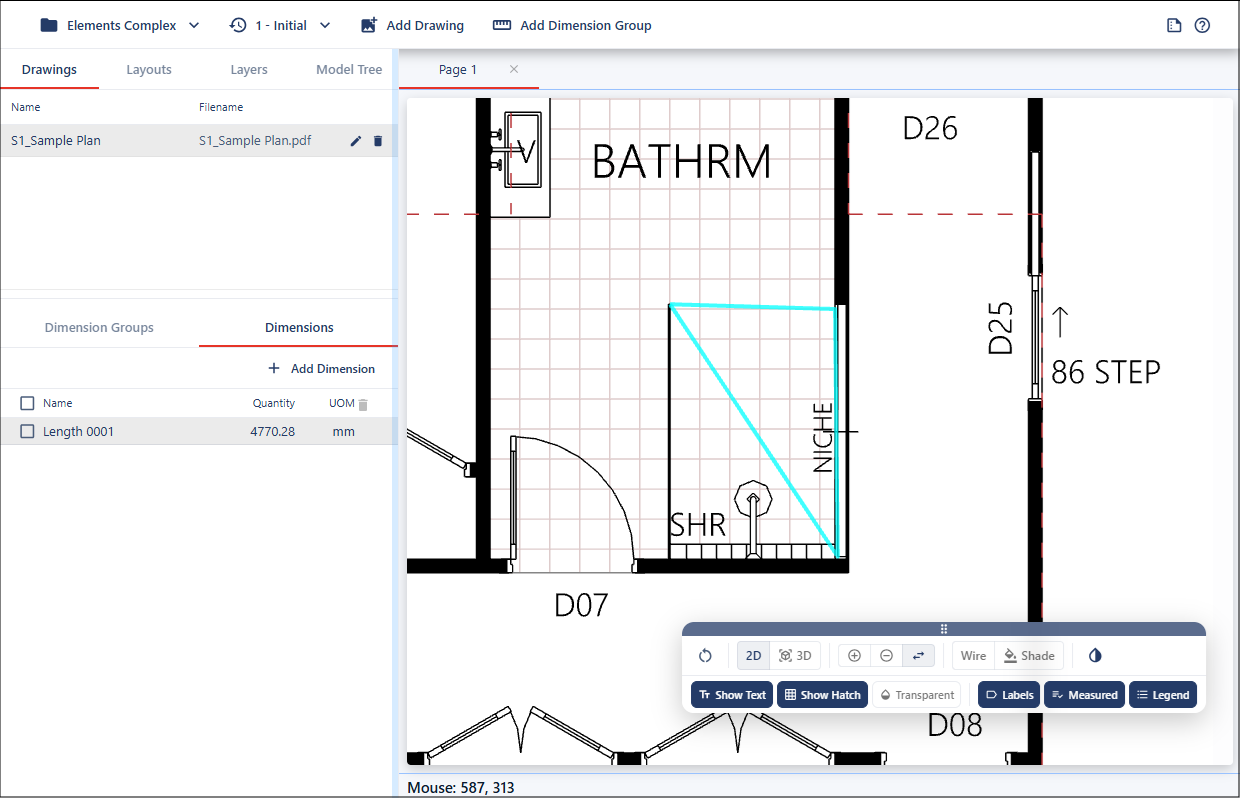
Additional points can be added to extend the measurement path. Continue holding Alt/Option and select further points to append connected segments to the existing length measurement.
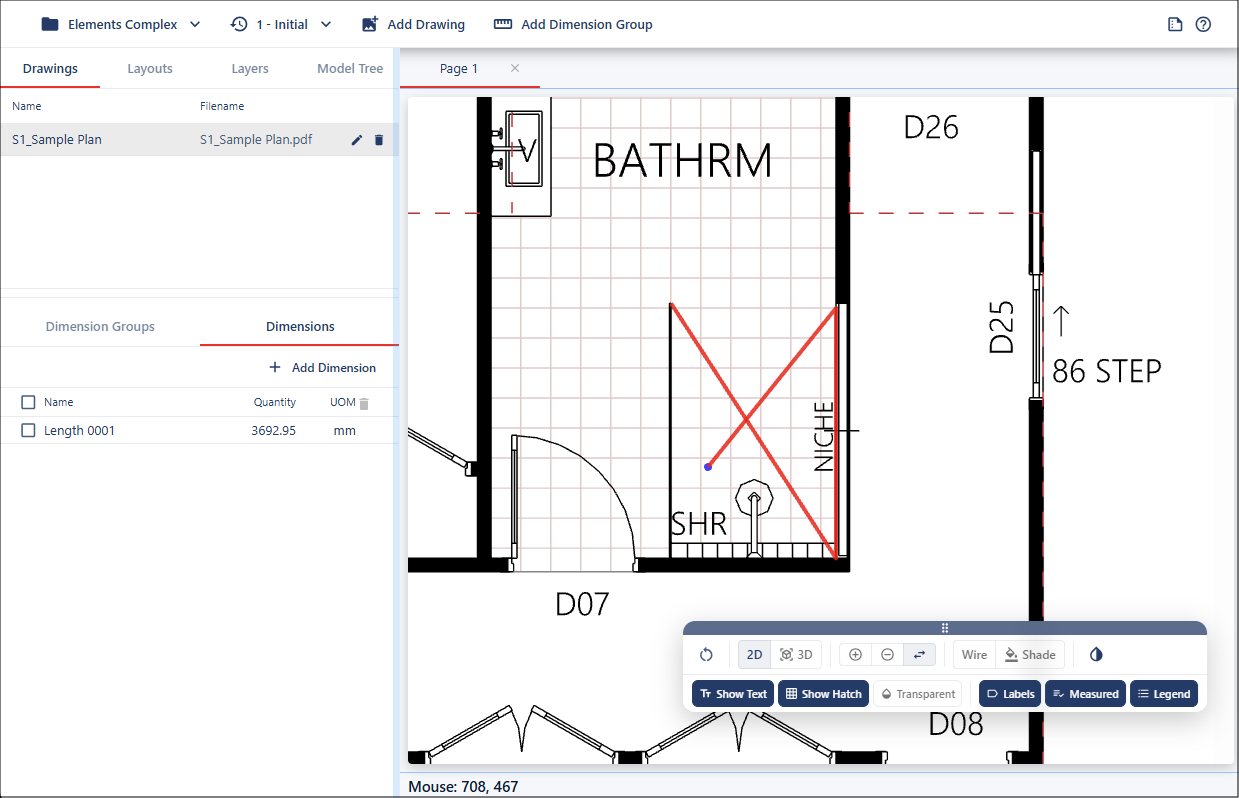
While creating the measurement, crossing over existing lines or intersecting geometry is not permitted. If the measurement path crosses another line, the measurement preview will display in red to indicate an invalid path, and the measurement cannot be completed until the path is adjusted.