Auto Count by Shape
Overview
Auto Count by Shape is an advanced counting tool that automatically detects and counts repeated objects within a drawing based on a user-defined shape template. Instead of manually placing individual counts, the system can search the drawing for similar objects and generate counts automatically.
This feature is especially useful when working with drawings that contain large numbers of repeated symbols, fixtures, fittings, or similar shapes.
Use Auto Count by Shape
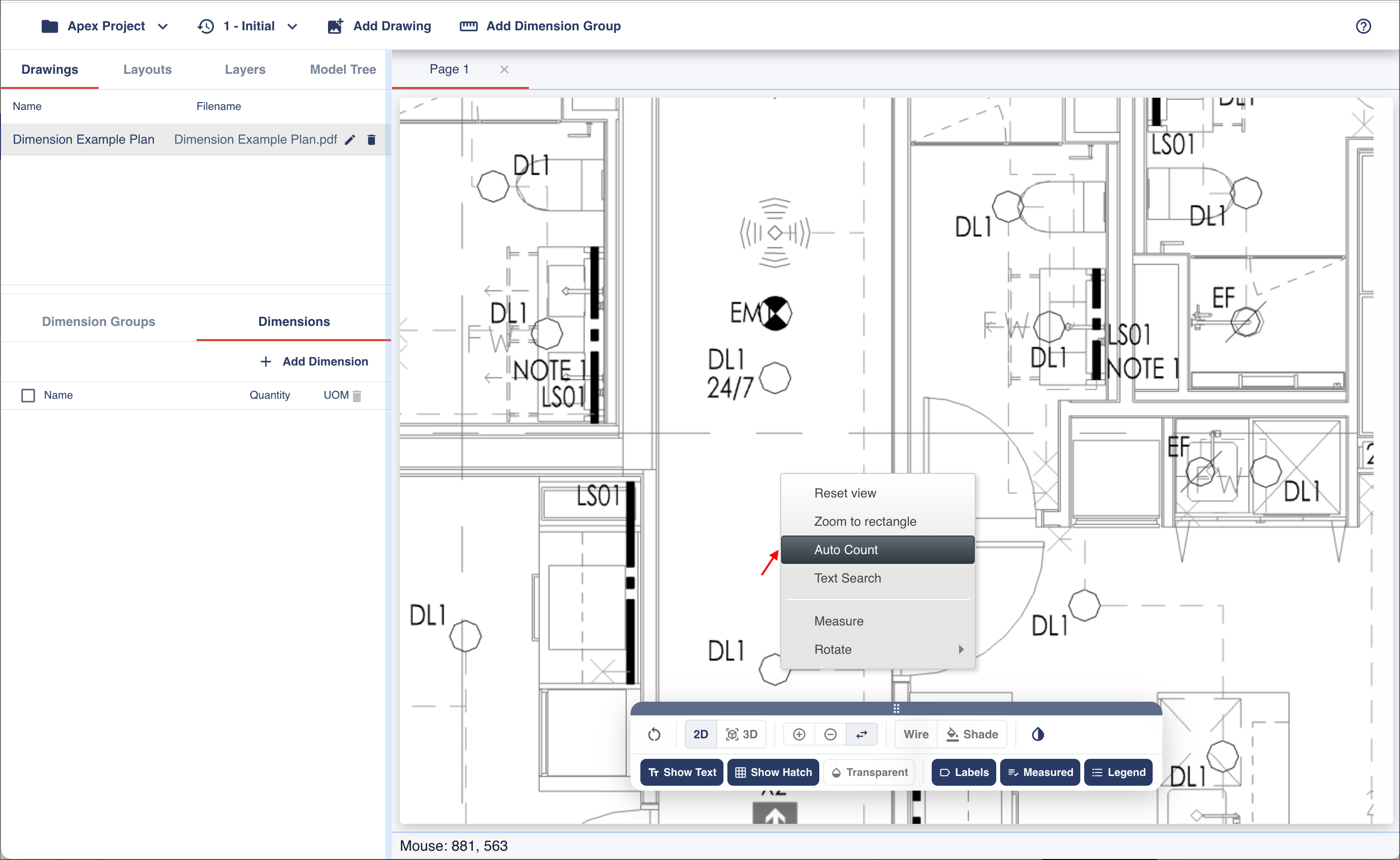
To begin, zoom into the object you want to count, right-click inside the viewport, and select Auto Count to open the Auto Count properties dialog.
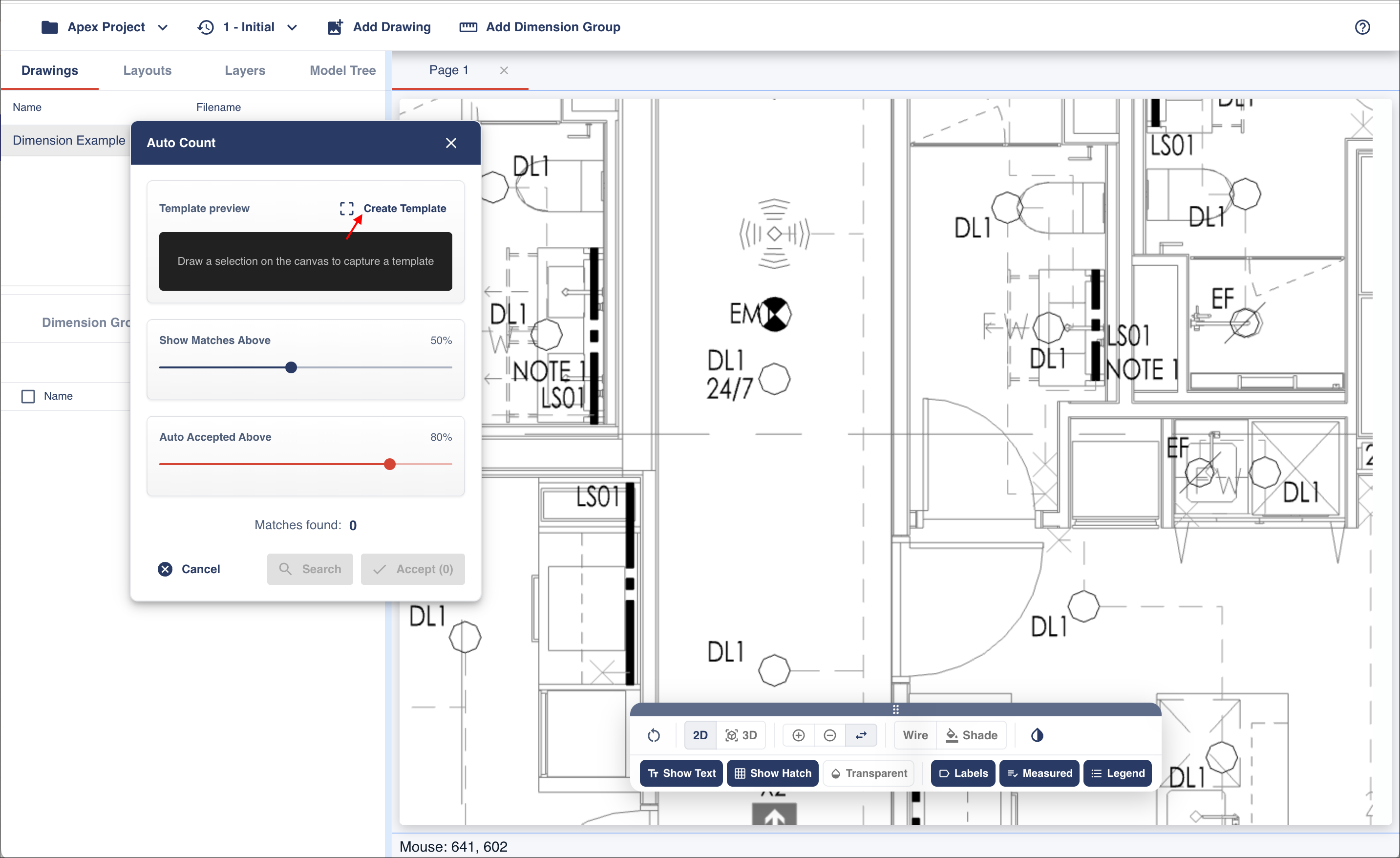
Inside the dialog, you can configure the matching behavior using two percentage sliders:
Show Matches Above - This setting controls which potential matches are displayed during the search process.
- A higher percentage applies stricter matching rules, meaning only objects that closely resemble the template will be shown.
- A lower percentage broadens the search and displays more possible matches, but may also include incorrect or unwanted results.
This slider is useful for visually reviewing possible matches before they are accepted as counts.
Auto Accepted Above - This setting controls which matches are automatically accepted as valid counts.
- Matches above this percentage are automatically treated as confirmed count results.
- Increasing the percentage makes acceptance more strict and accurate.
- Lowering the percentage allows more matches to be accepted automatically but may increase false positives.
This allows you to control the balance between detection sensitivity and counting accuracy.
Once the percentage settings have been adjusted, click Create Template.
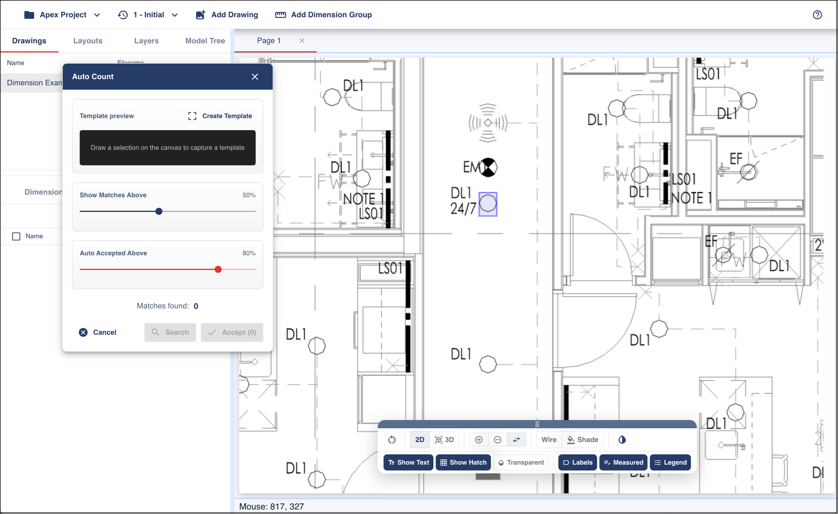
You can then left-click, hold, and trace around an object directly within the viewport.
When the mouse button is released, the traced object becomes the search template and will appear inside the Auto Count dialog.
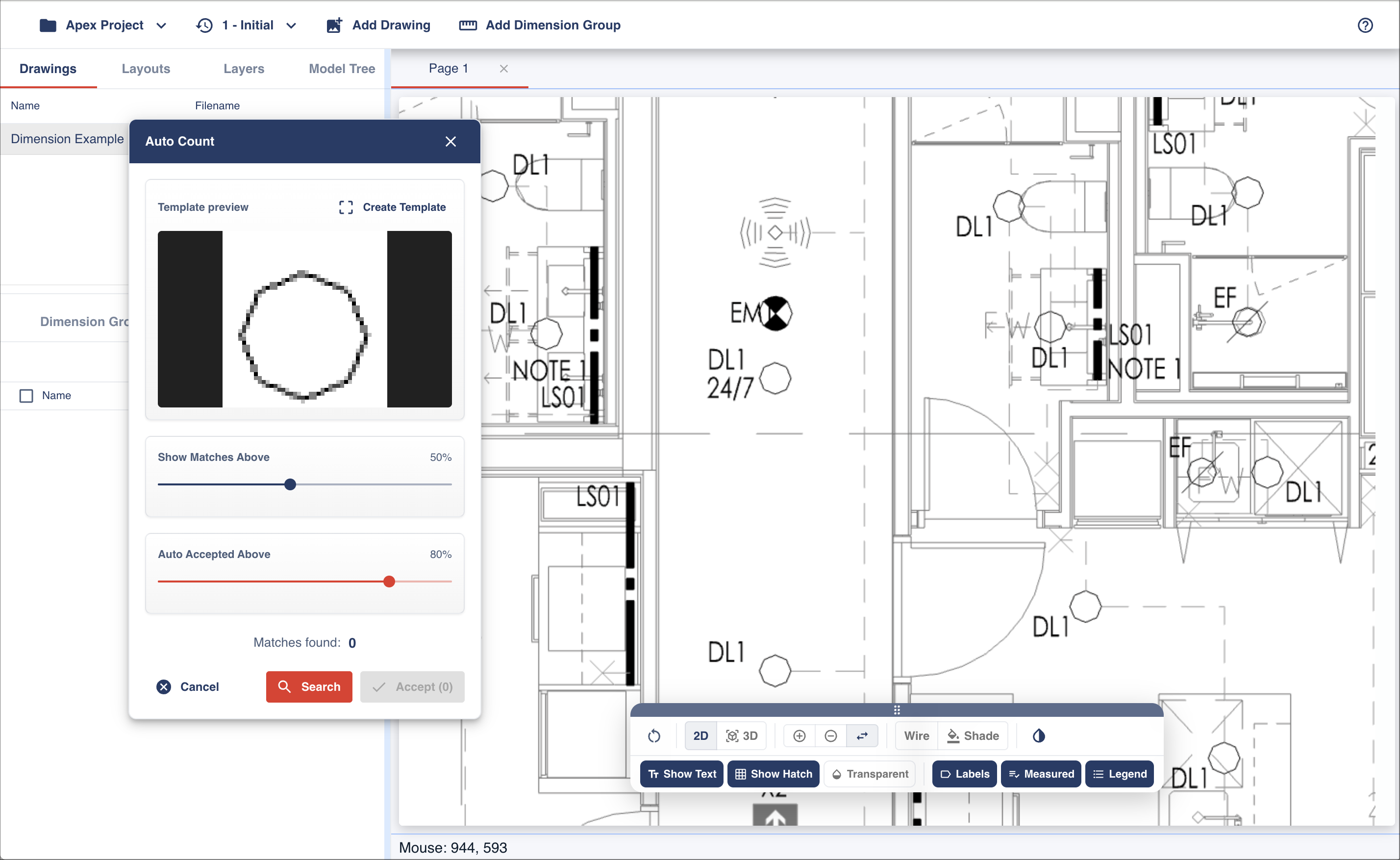
Click Search to begin scanning the drawing for matching objects.
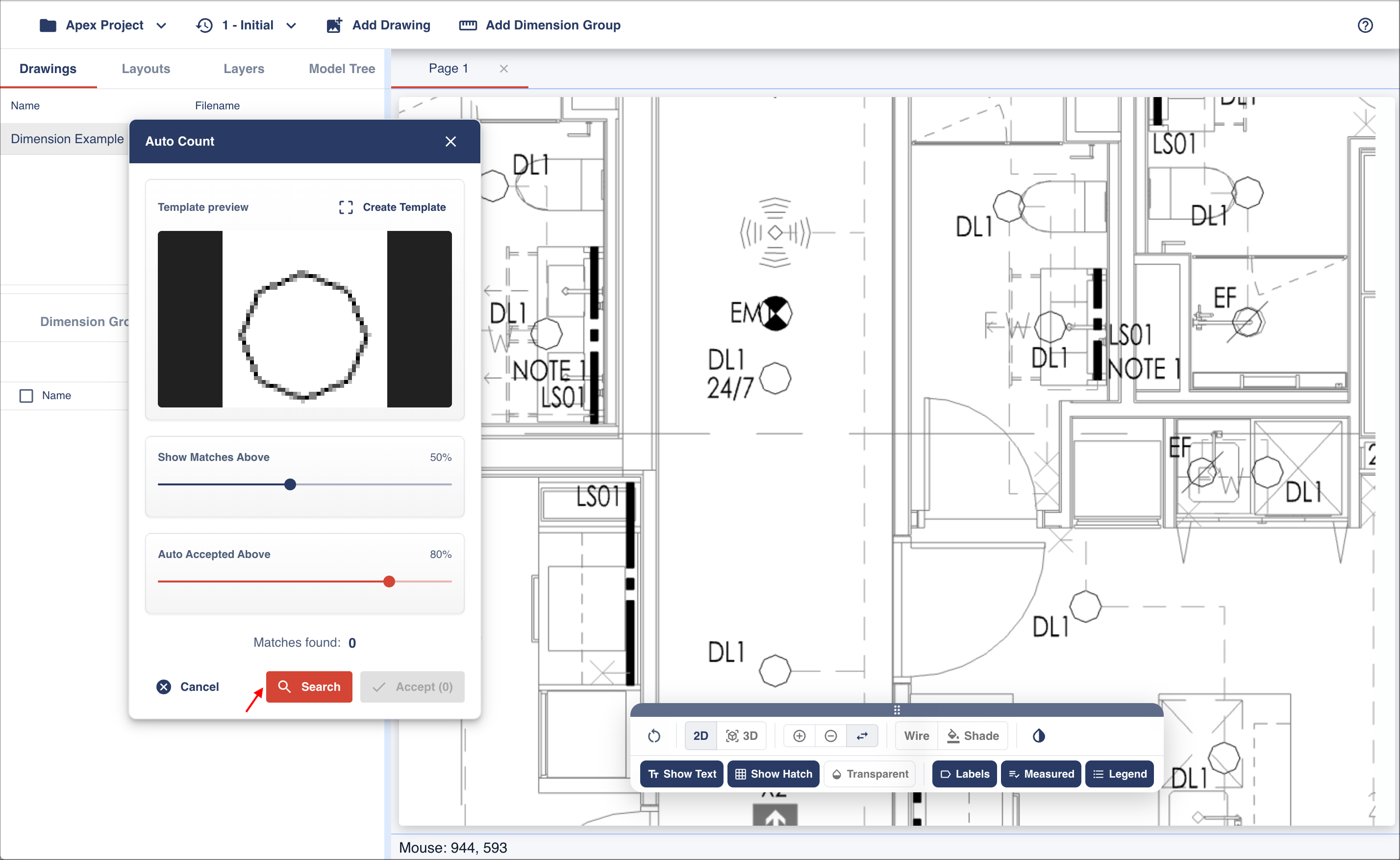
Once the search has completed, the detected matches are color-coded directly within the drawing to help you review and refine the detected objects before accepting.
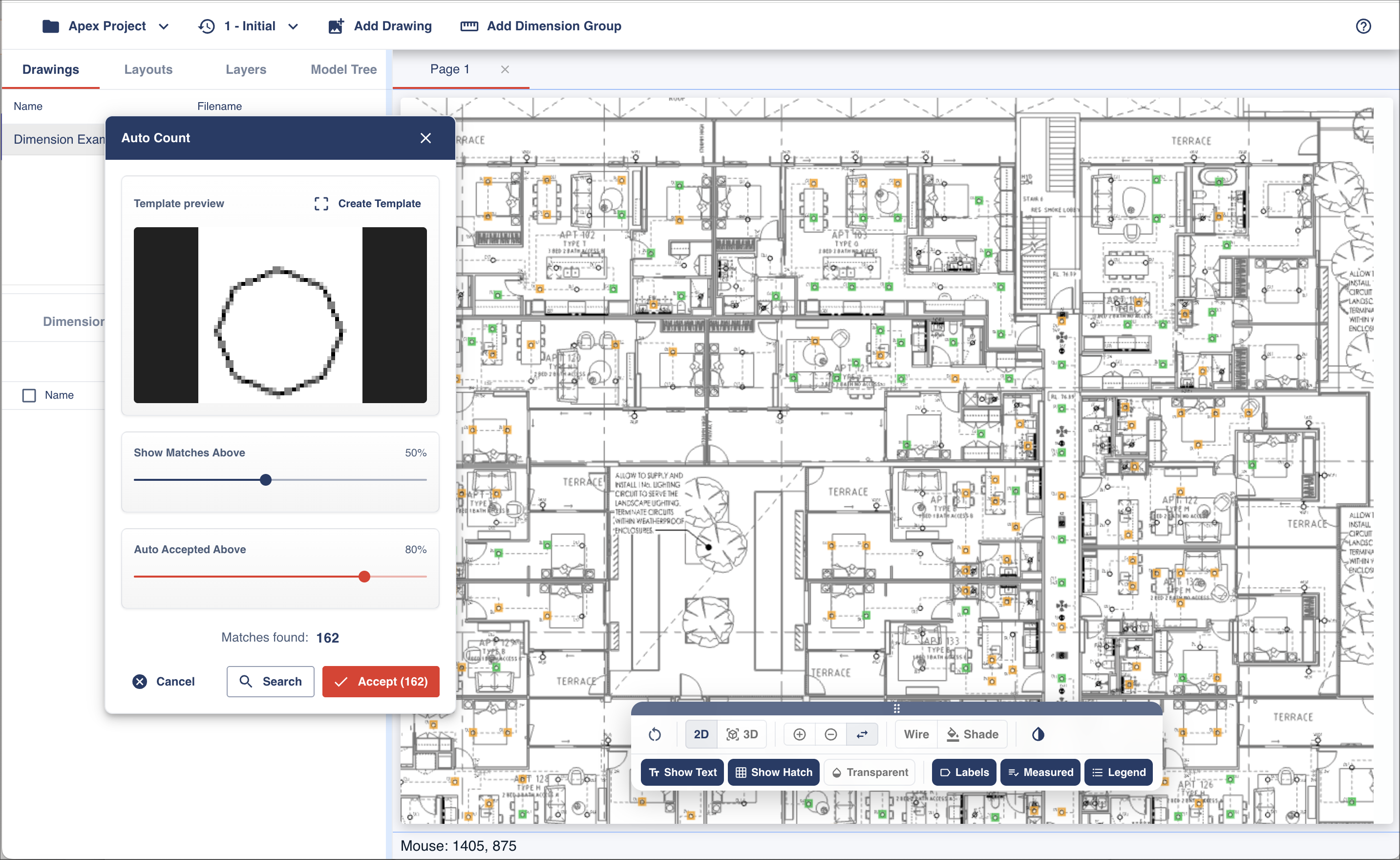
Objects that meet or exceed the Auto Accepted Above threshold are highlighted in green. These are considered confirmed matches and will be included in the count when the results are accepted.
Objects that closely resemble the template but do not meet the acceptance threshold are highlighted in orange. These are considered possible matches and can be reviewed manually to determine whether they should be included in the count.
Before accepting the results, you can manually control which objects are included in the final count by clicking directly on them within the drawing.
For confirmed matches, the selection cycle is:
Confirmed Match (Green) -> Excluded (Red) -> Possible Matches (Orange) -> Confirmed Match (Green)- Green indicates the object is included in the count
- Clicking a green object changes it to red, excluding it from the count
- Clicking a red object changes it to orange, marking it as a possible match
- Clicking an orange object changes it to green, including it in the count once again
For possible matches, the selection cycle is:
Possible Match (Orange) -> Confirmed Match (Green) -> Excluded (Red)- Orange indicates a possible match that is not currently included
- Clicking an orange object changes it to green, including it in the count
- Clicking a green object changes it to red, excluding it from the count
This review process allows you to quickly fine-tune the search results by promoting possible matches that should be counted and excluding confirmed matches that were incorrectly identified.
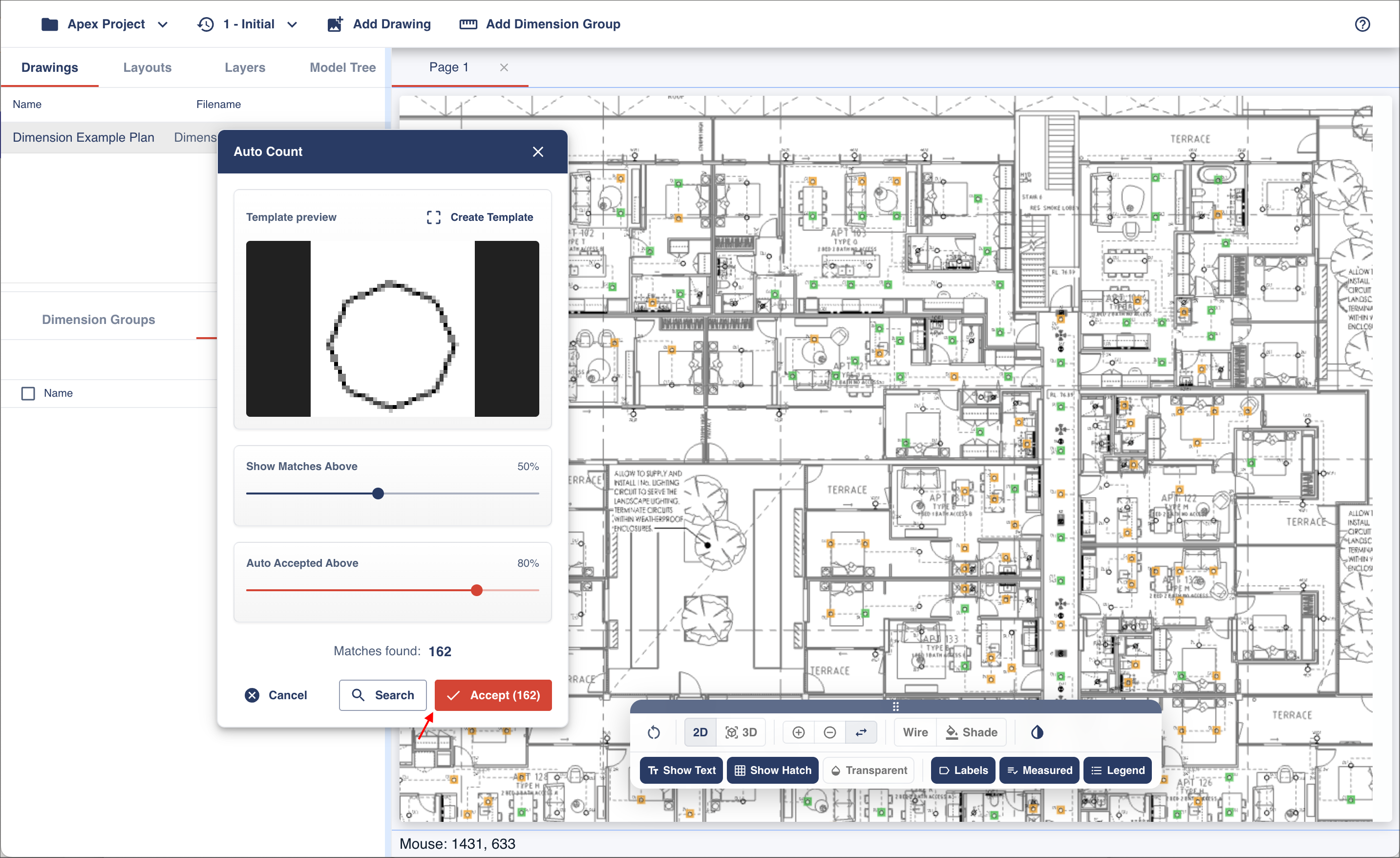
Once you are satisfied with the results, click Accept.
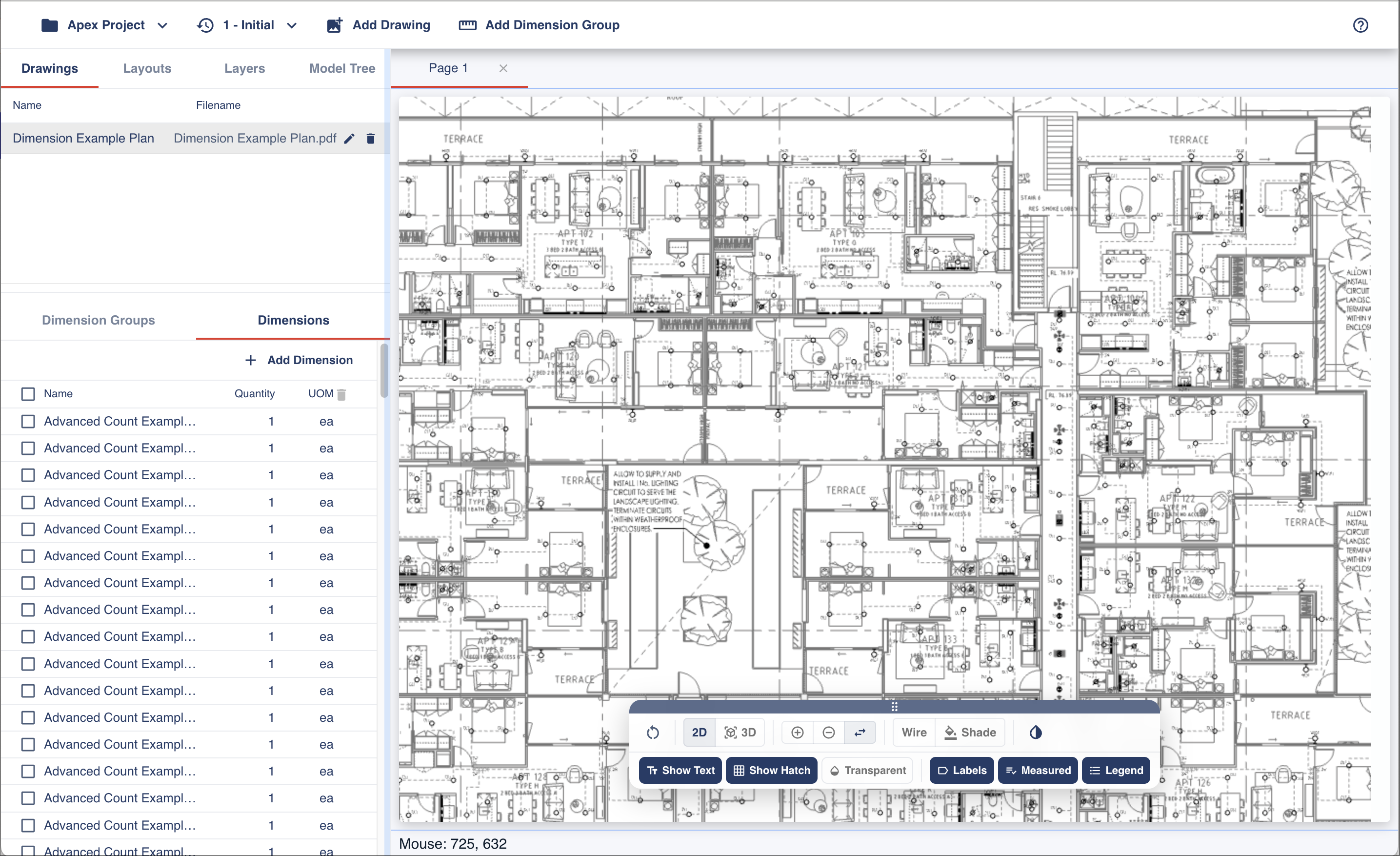
The generated counts will automatically be added to the selected dimension group under the Dimensions tab.
Refining Search Results
If the search results are not as expected, you can adjust the matching percentages, create a new template, and run the search again. Click Create Template to trace a different object and generate a new search template. Once the template and matching criteria have been updated, click Search to perform a new scan of the drawing.