Auto Count by Text
Overview
In some drawings, Auto Count by Shape may not be the most effective counting method. When objects appear visually similar but have different labels, codes, or specifications, Auto Count by Text can provide more accurate results.
Auto Count by Text is an advanced counting tool that automatically detects and counts repeated text within a drawing. This is particularly useful when multiple objects, such as downlights, appear identical on a plan but represent different models, ratings, or specifications.
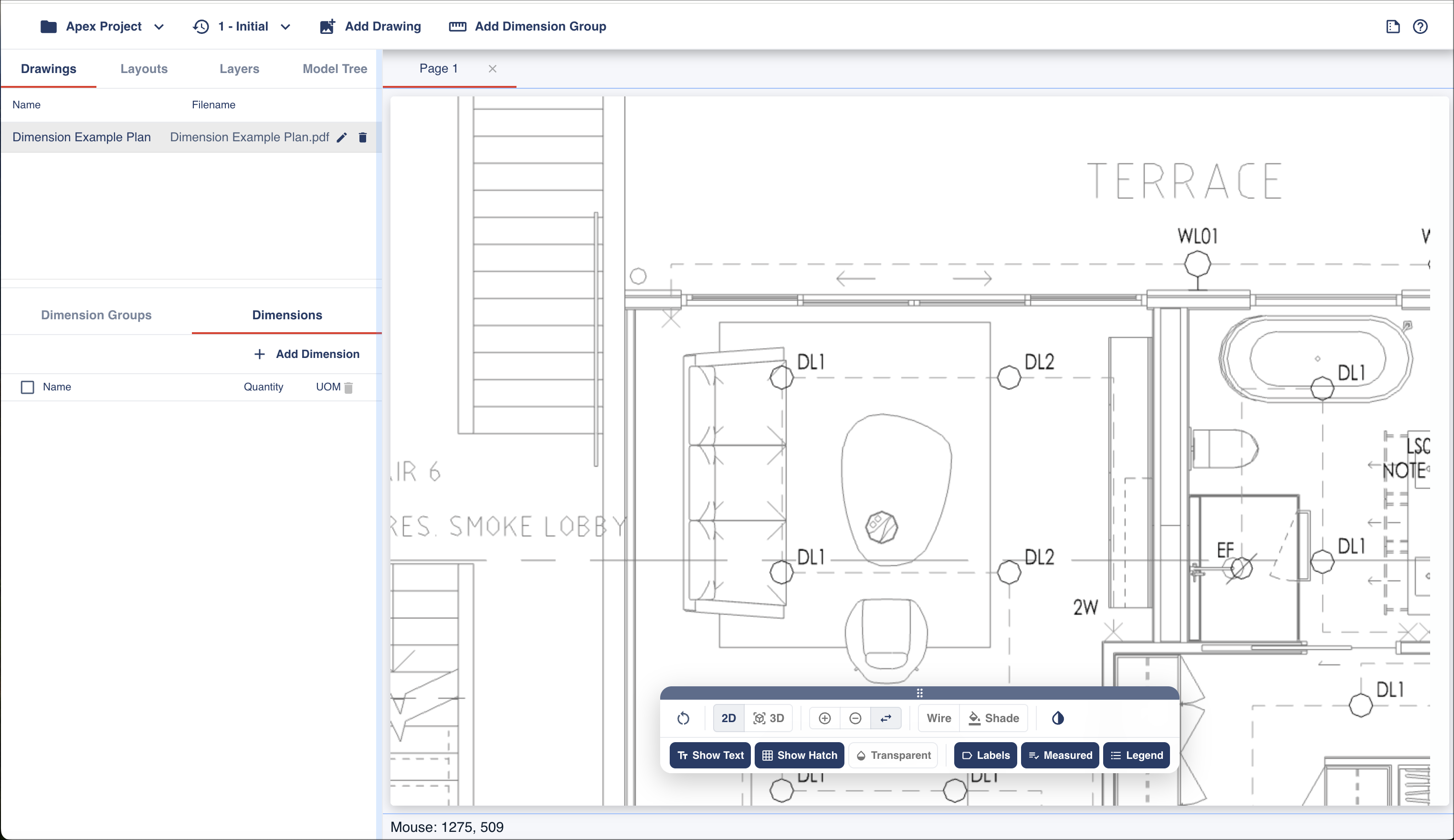
This feature is ideal for drawings that contain large numbers of repeated symbols, fixtures, or fittings where the associated text is used to distinguish between different item types. For example, a lighting plan may contain many downlights that look the same visually but have different product codes or performance specifications. The image below shows two downlights with different codes, DL1 and DL2.
Use Auto Count by Text
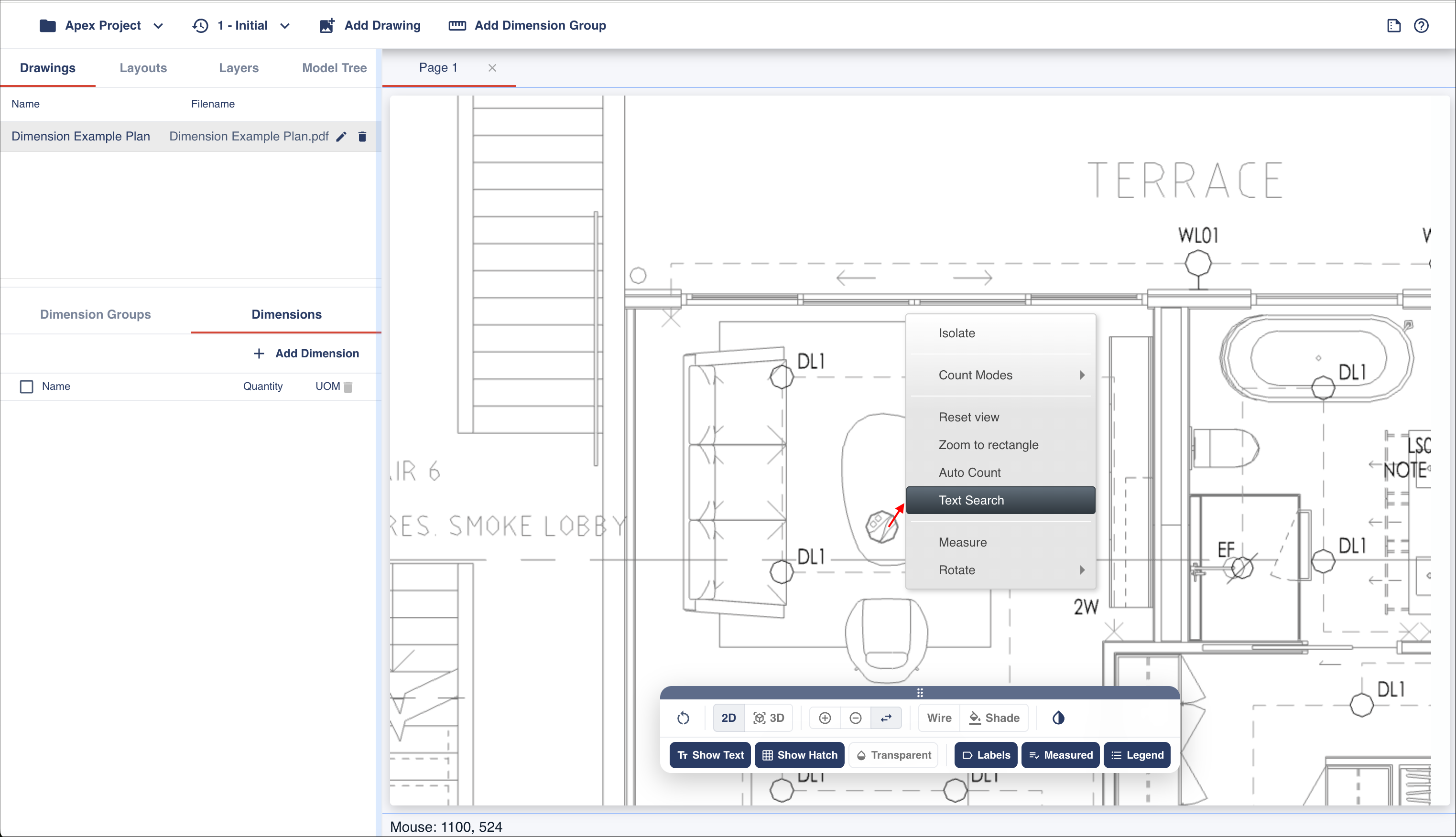
To use Auto Count by Text, know the text you need to count within the drawing. Right-click in the viewport and select Text Search to open the Text Search dialog.
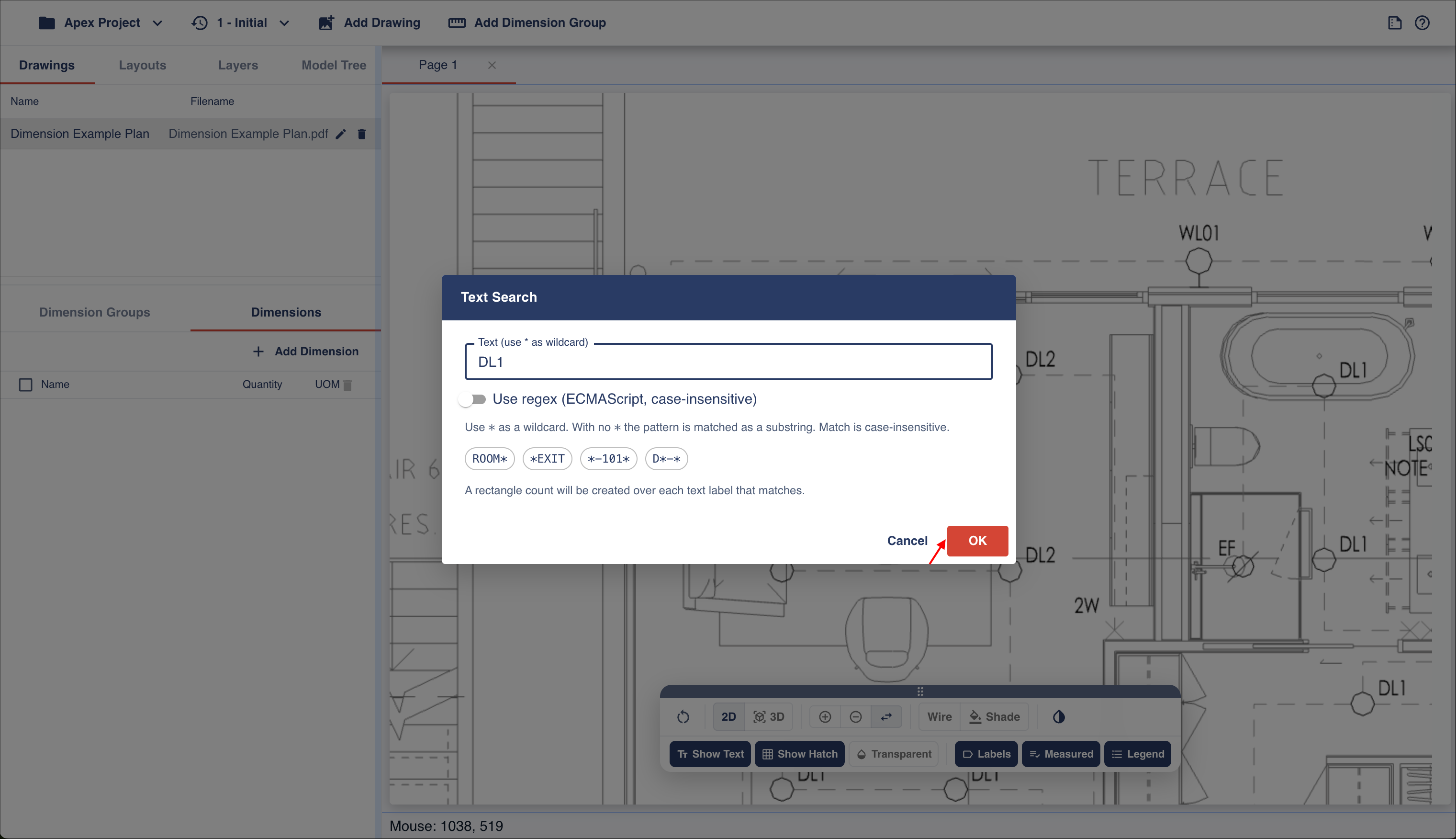
Enter the text you want to count in the Text field and click the OK button.
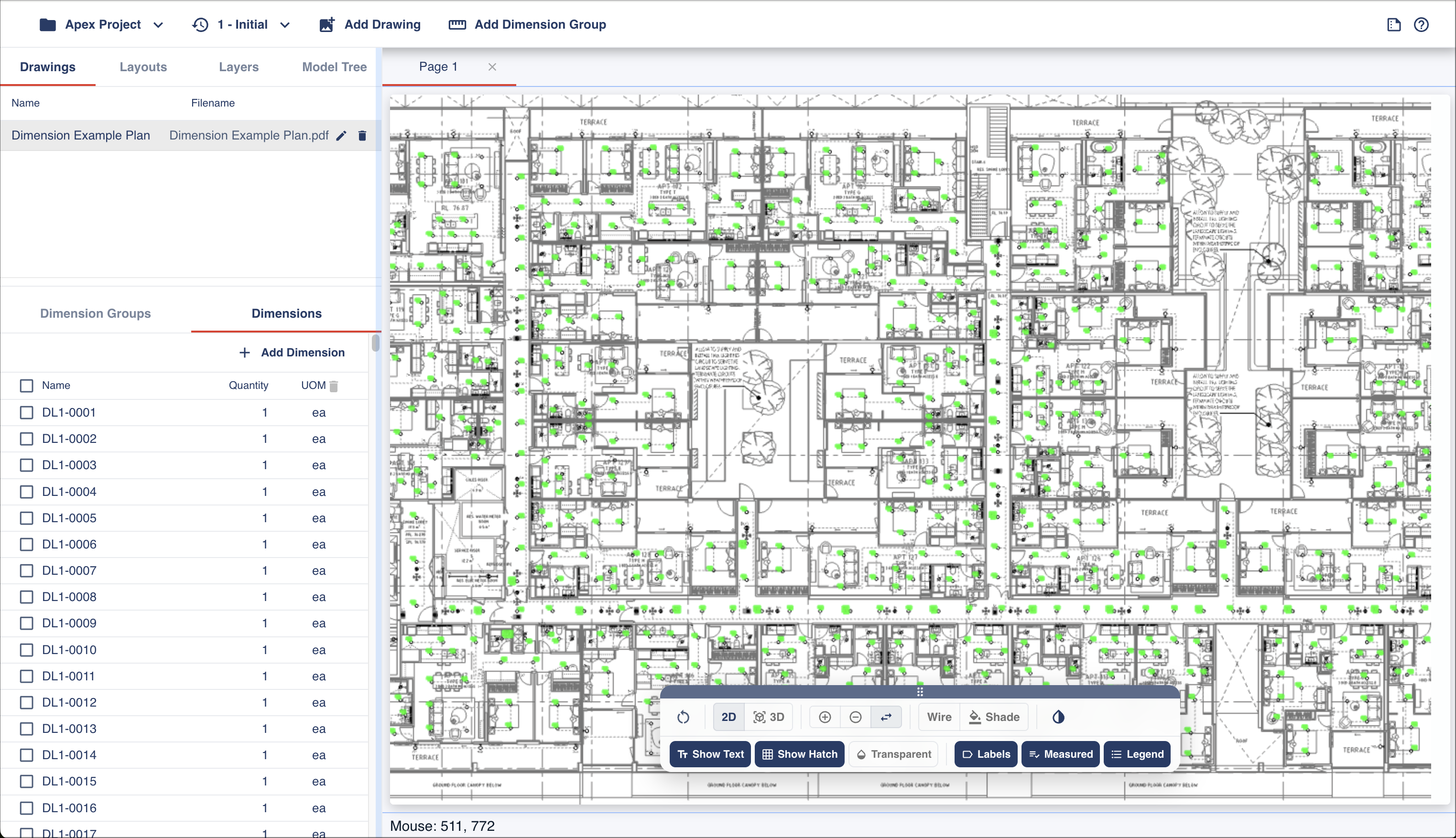
The matching text will be located, and the resulting counts will be available under the Dimensions tab for the selected dimension group, and each count will be highlighted in the drawing.
Auto Count by Text supports a number of advanced counting methods and search options. These additional features are not covered in the Quick Start Guide.