Count Mode Rectangle
Overview
Rectangle Count allows you to count an element, object, or defined area as a single count measurement.
Use Rectangle Count
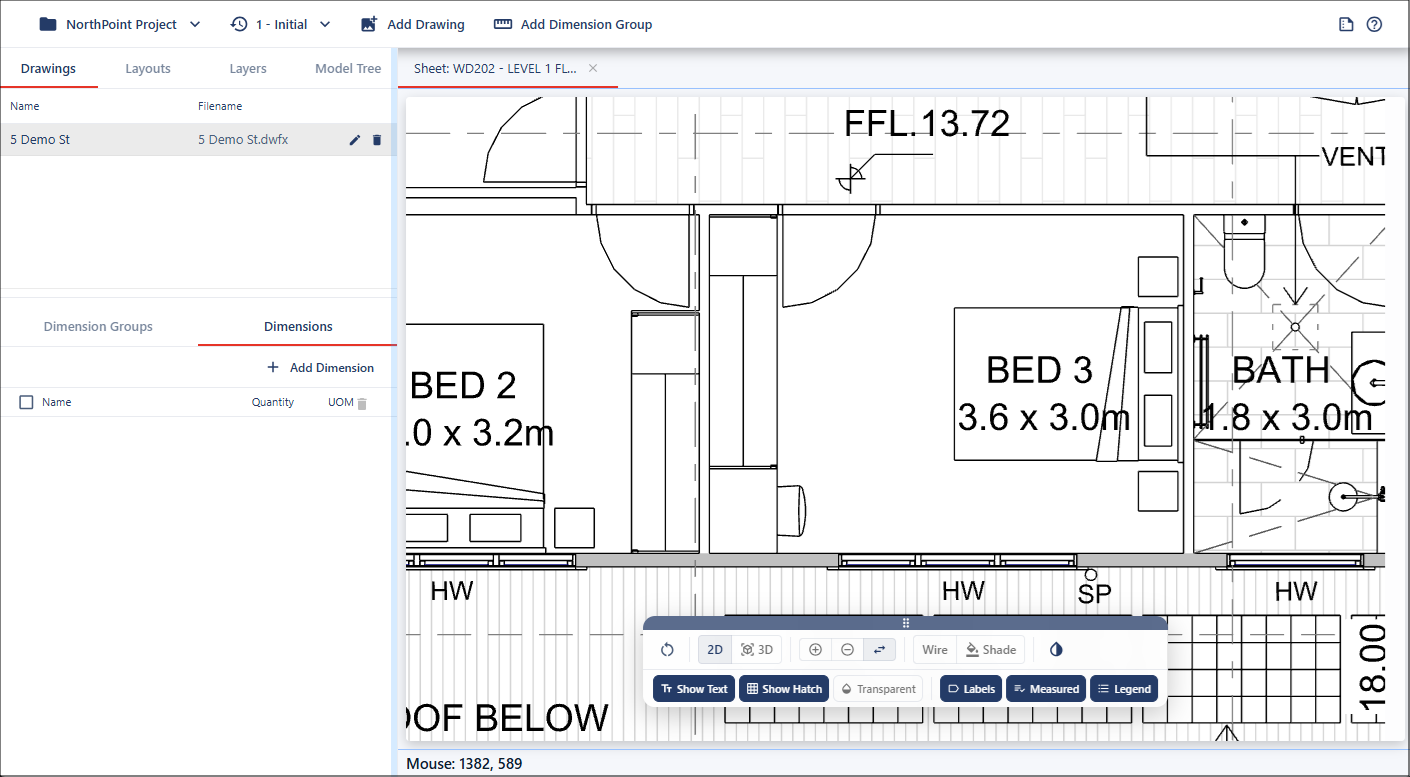
To begin, zoom in on the item you want to measure.
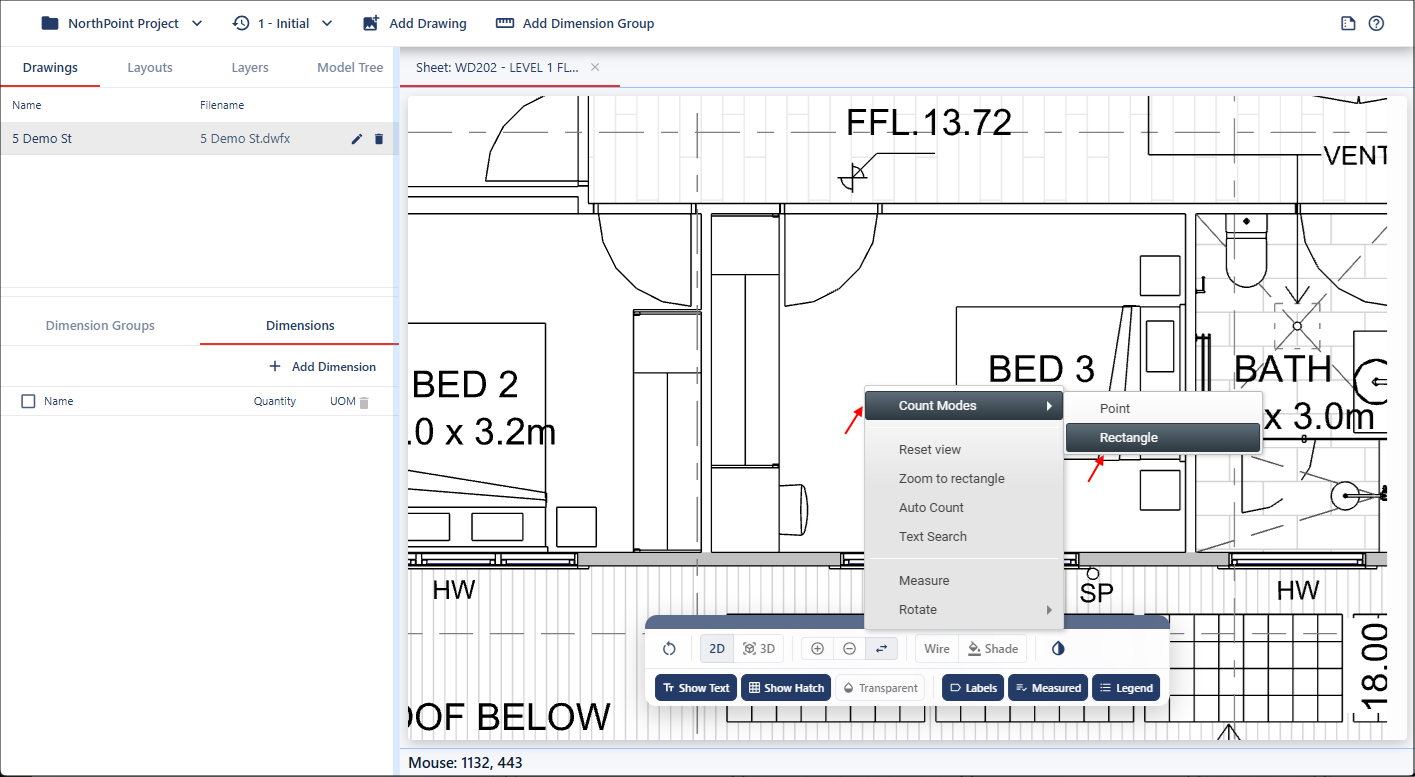
Next, right-click in the viewport, select Count Modes, and then choose Rectangle.
Click and hold the left mouse button, then drag the cursor to trace a rectangle around the object or area you want to count.
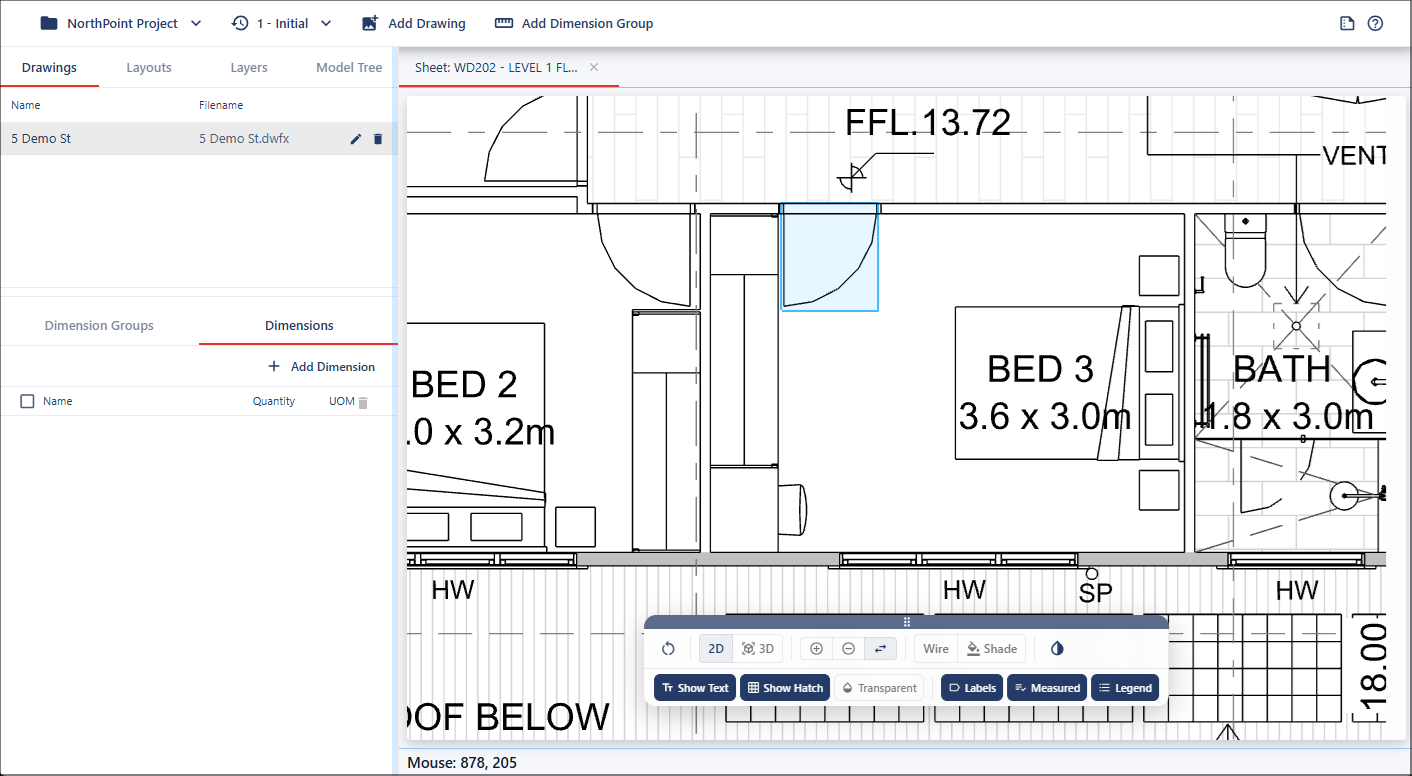
Rectangle Count can be used when a larger measurement area is preferred over a precise point-and-click selection. For example, a door can be highlighted using a larger rectangle to make the selection more visible and easier to identify during measurement.
Release the mouse button to complete the count. The measurement will be highlighted in the drawing and listed under the Dimensions tab for the selected dimension group.
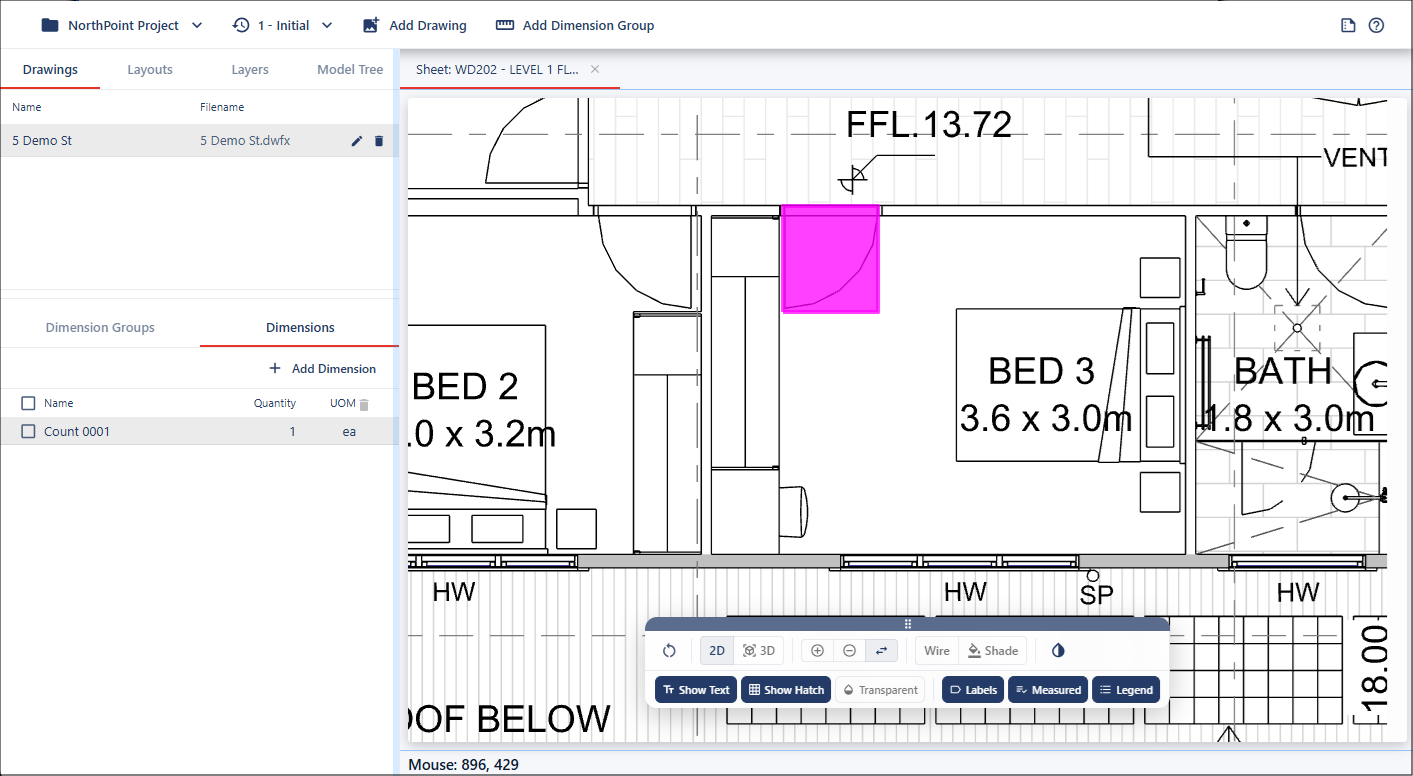
When using Rectangle Count, everything within the highlighted rectangle will be recorded as one count. For example, if both a door and a wardrobe are highlighted within the same rectangle, they will together be counted as a single count measurement.
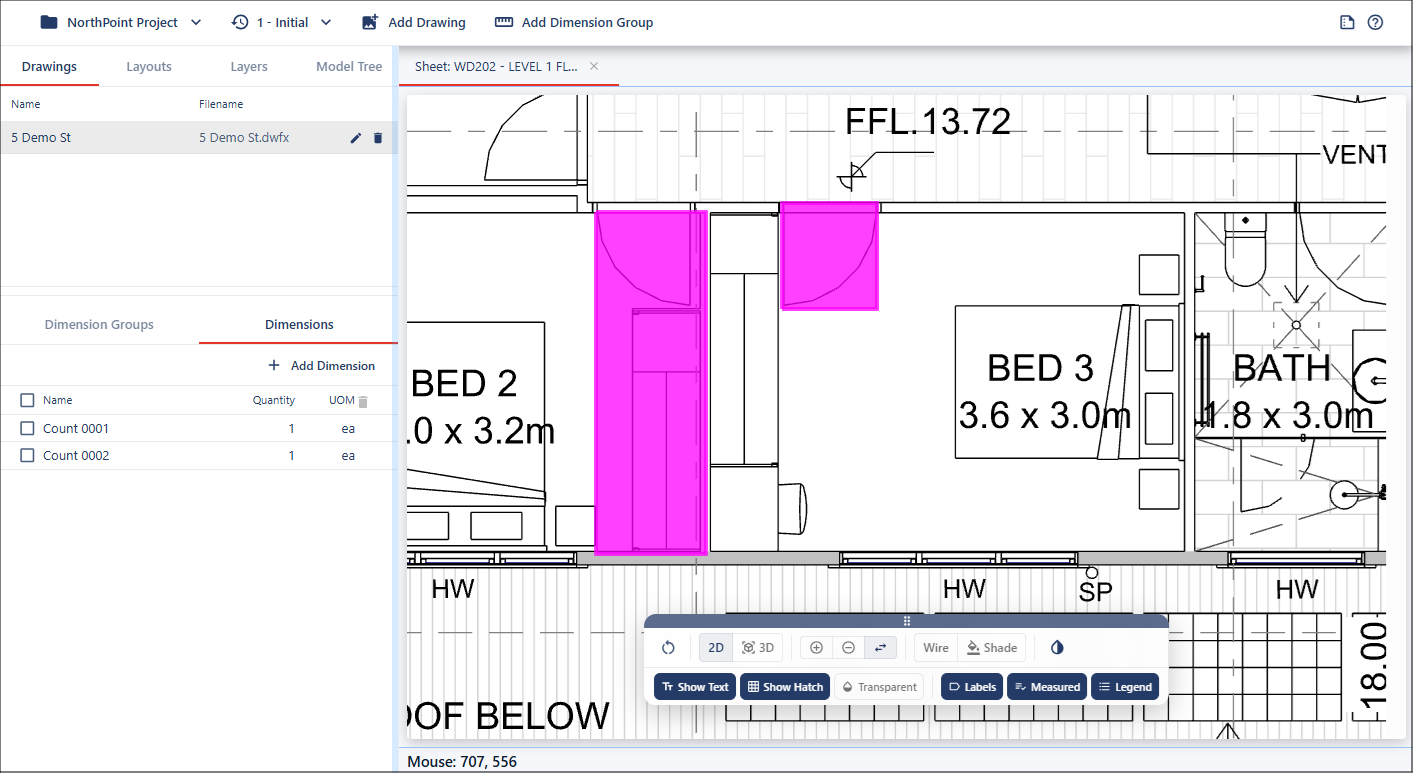
Rectangle Count mode will remain active after a measurement is completed, allowing additional counts to be created without reselecting the tool. Press the Escape key to return to point-and-click mode, or select a different Count Mode from the menu.