Count Mode Point
Overview
By default, Count Mode measurement is a simple point-and-click workflow used to quickly quantify items within a drawing. Each count action adds a count dimension directly into the currently selected dimension group, allowing results to be organized and tracked consistently.
All counting methods update the active dimension group, ensuring all results remain grouped and easy to manage.
Depending on the type of item or object being measured, you can use two methods:
- Point-and-click
- Object selection
Use Point Count
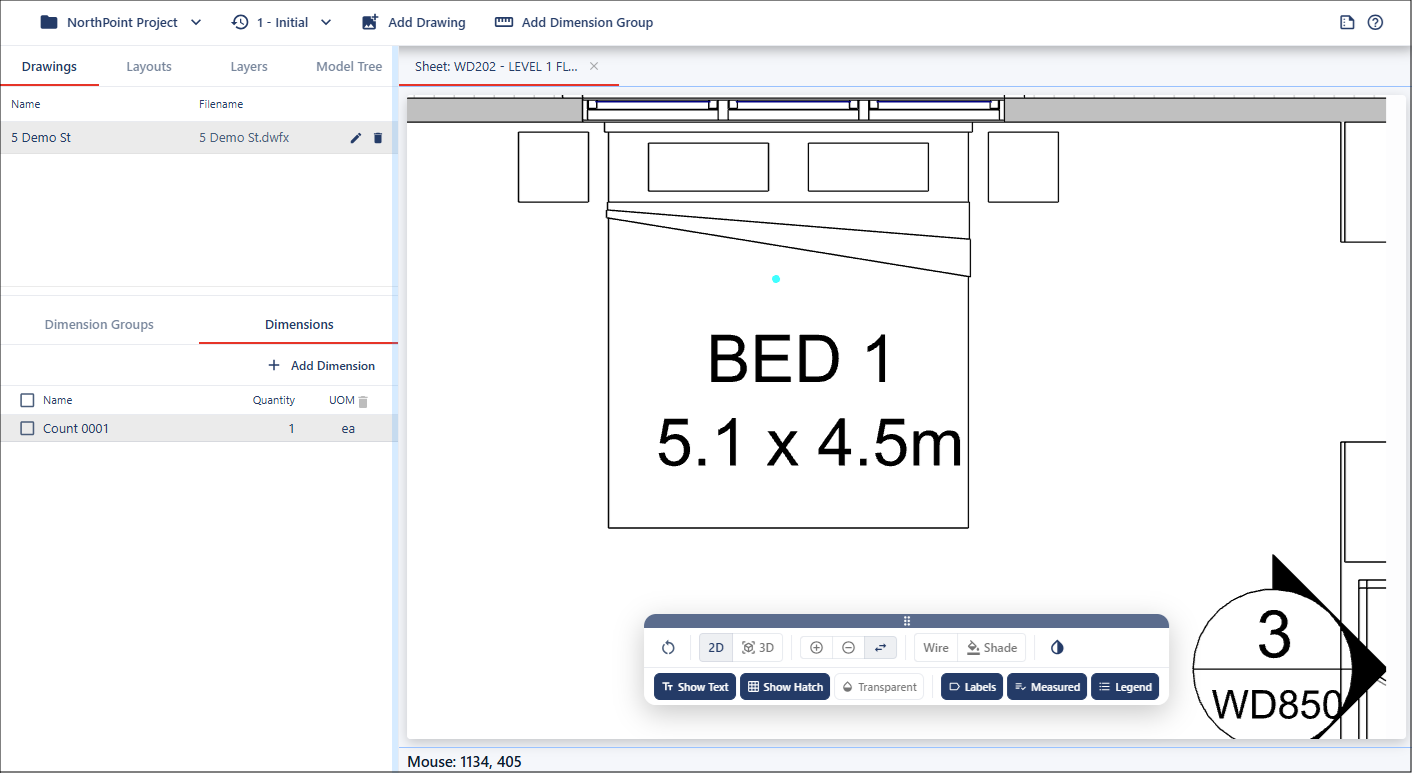
To perform point-and-click counting, simply click on an item in the drawing to place a count marker. This creates an indicator at the selected location and increments the count by one. The count measurement is located on BED 1 in the drawing.
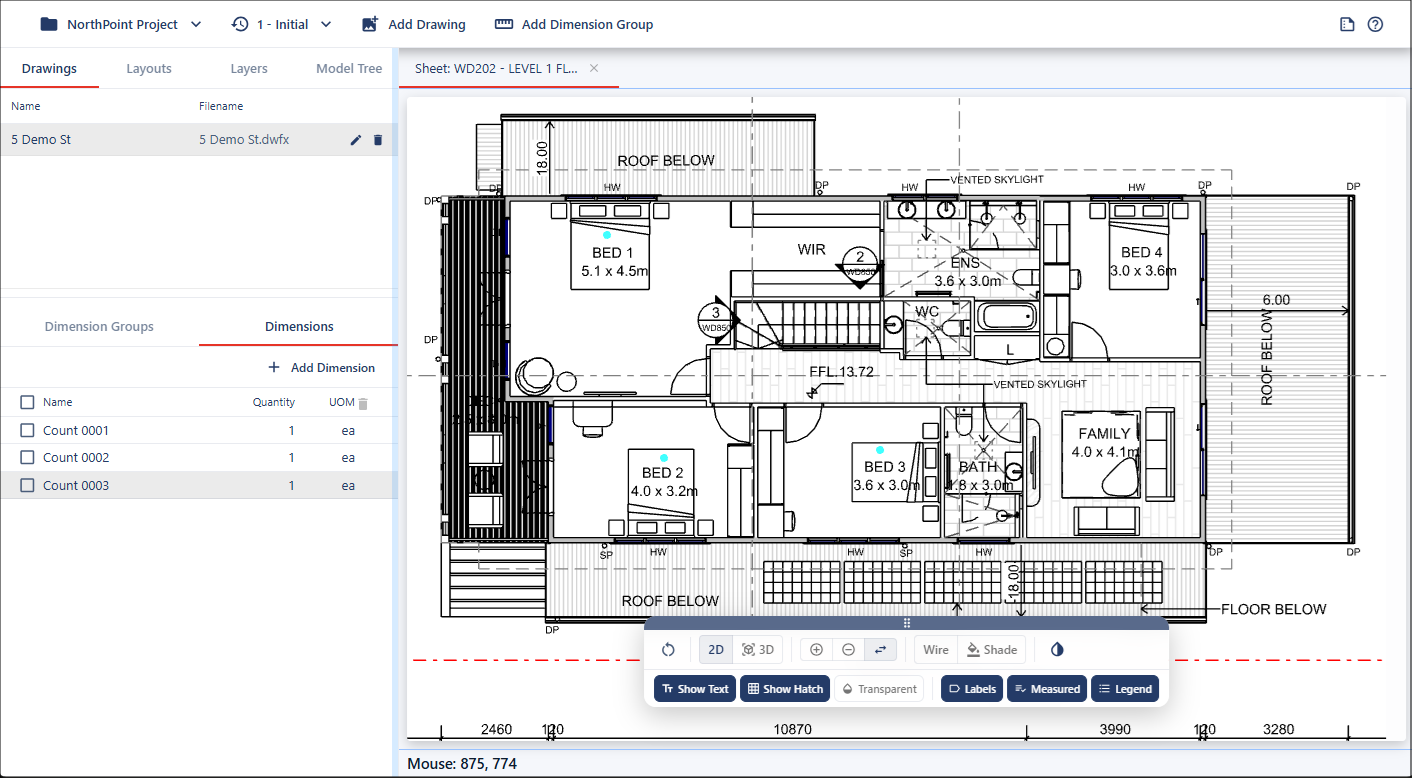
Each count is automatically listed under the Dimensions tab. BED 2 and BED 3 are now included in the count.
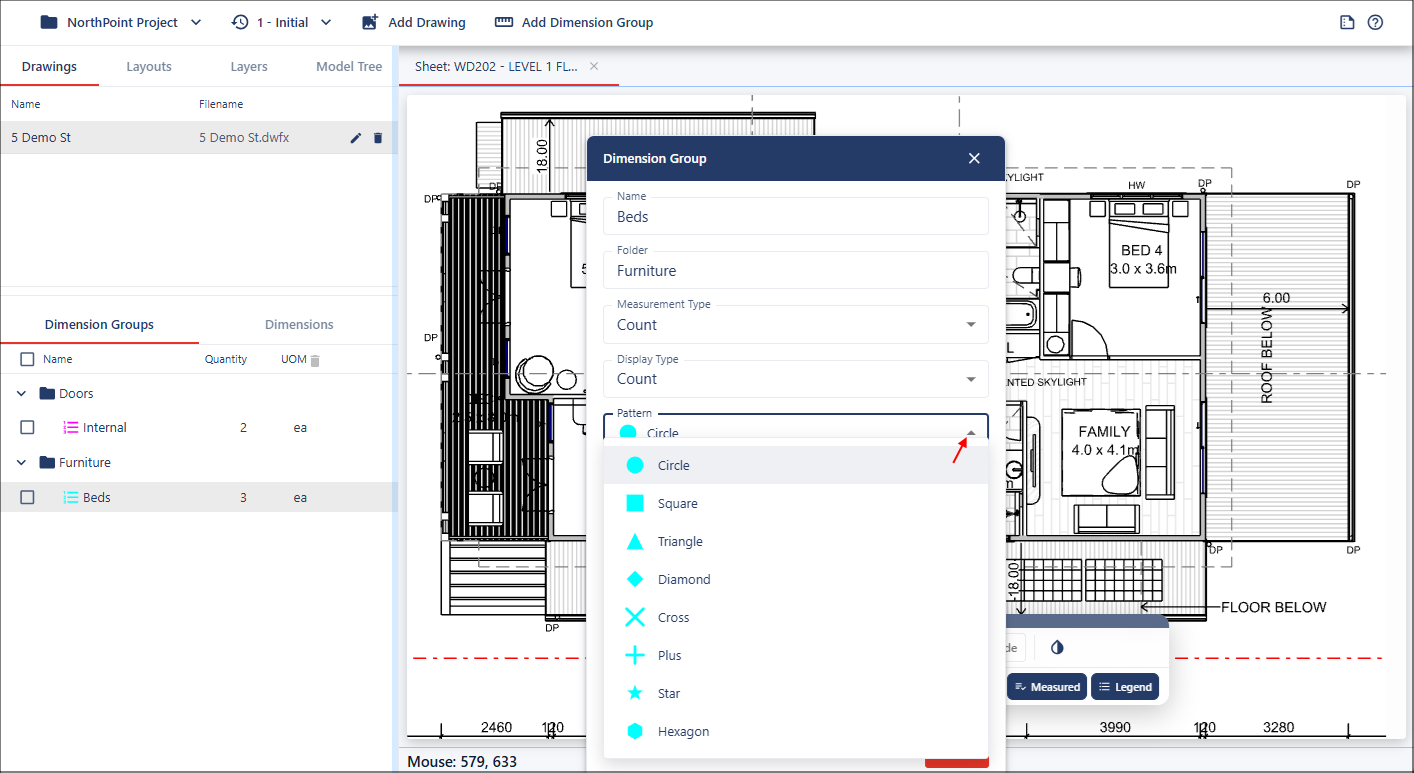
By default, a circular dot pattern is used for count markers. You can change the default marker pattern in the Dimension Group Properties dialog using the Pattern field.
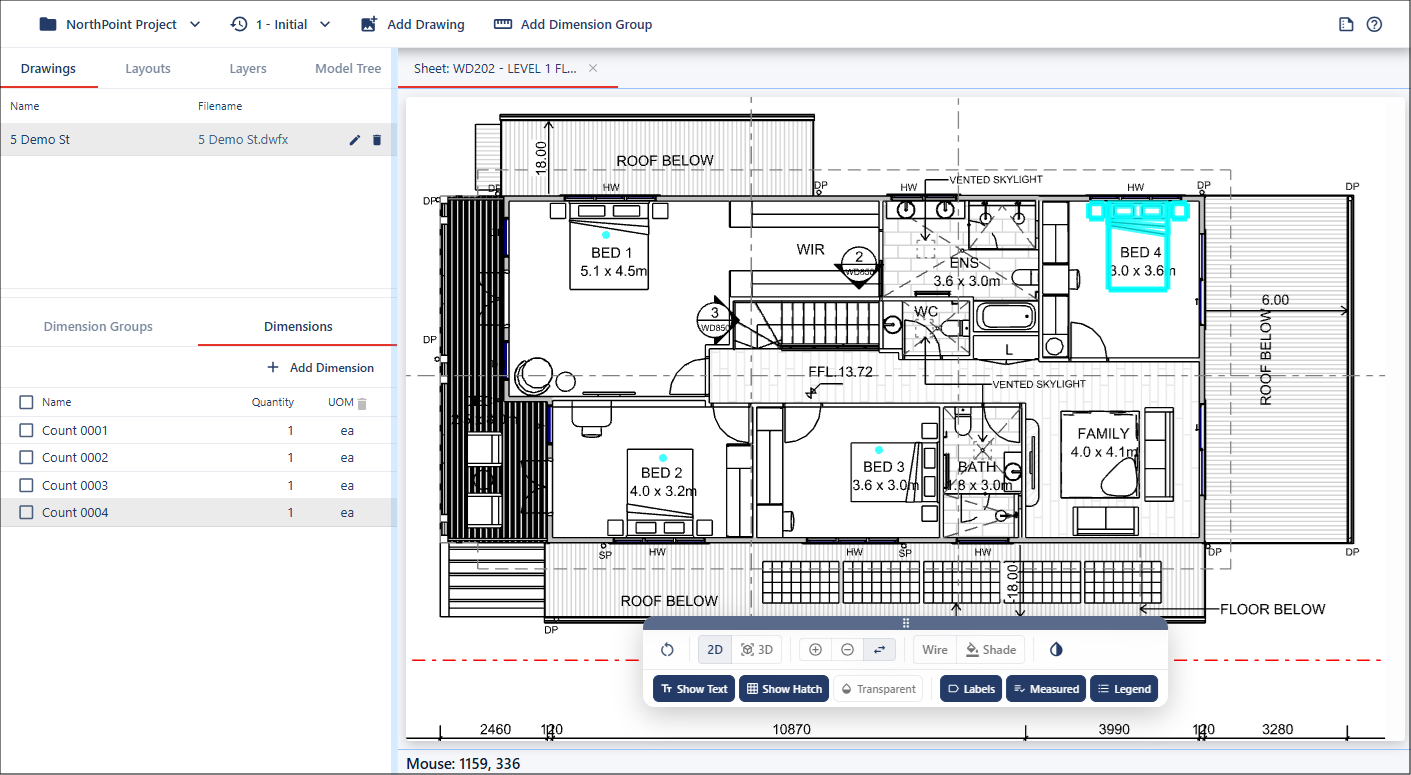
Object Selection
Object selection counting is designed for structured drawing objects such as BIM elements or block objects.
When these objects contain grouped geometry, for example, multiple components within a single block, holding the Shift key while selecting will highlight and count the entire object as a single item.